
Set a Default Shortener for Your Workspace
Set a Default Shortener for Your Workspace
Overview
By default, UTM.io asks you to pick a URL shortener each time you build a link. If your team almost always uses the same shortener, you can set a default shortener at the workspace level so it’s pre-selected automatically in the Link Builder - saving clicks and keeping your shortened links consistent across everyone in the workspace.
This is a per-workspace setting, so each of your workspaces can have its own default.
| 💡 Plan availability:
The default shortener is part of Workspace Rules, available on the Plus, Professional, Business, and Enterprise plans. If you’re on the Free or Starter plan, the Rules page will be locked - upgrade your plan (utm.io/pricing) to use it. |
Who can set this
Only Workspace Owners and Admins can change the default shortener. If you don’t see the option, ask a workspace admin to set it for you.
Before you begin
The shortener you want to use must already be enabled in the workspace. Only shorteners that are active for the workspace appear in the dropdown - this includes UTM.io’s built-in shorteners (utm.io / utm.guru / utm.rocks) and any custom branded domain or Bitly connection you’ve added. To connect or enable one, go to Link Shorteners in the left sidebar first.
How to set the default shortener
- In the left sidebar, open Rules.
- In the Workspace Settings section, find the Choose the Default Shortener dropdown (it shows “No Shortener Selected” when none is set).
- Click the dropdown and choose the shortener you want as the default.
- Click Save Workspace Settings to apply your change.
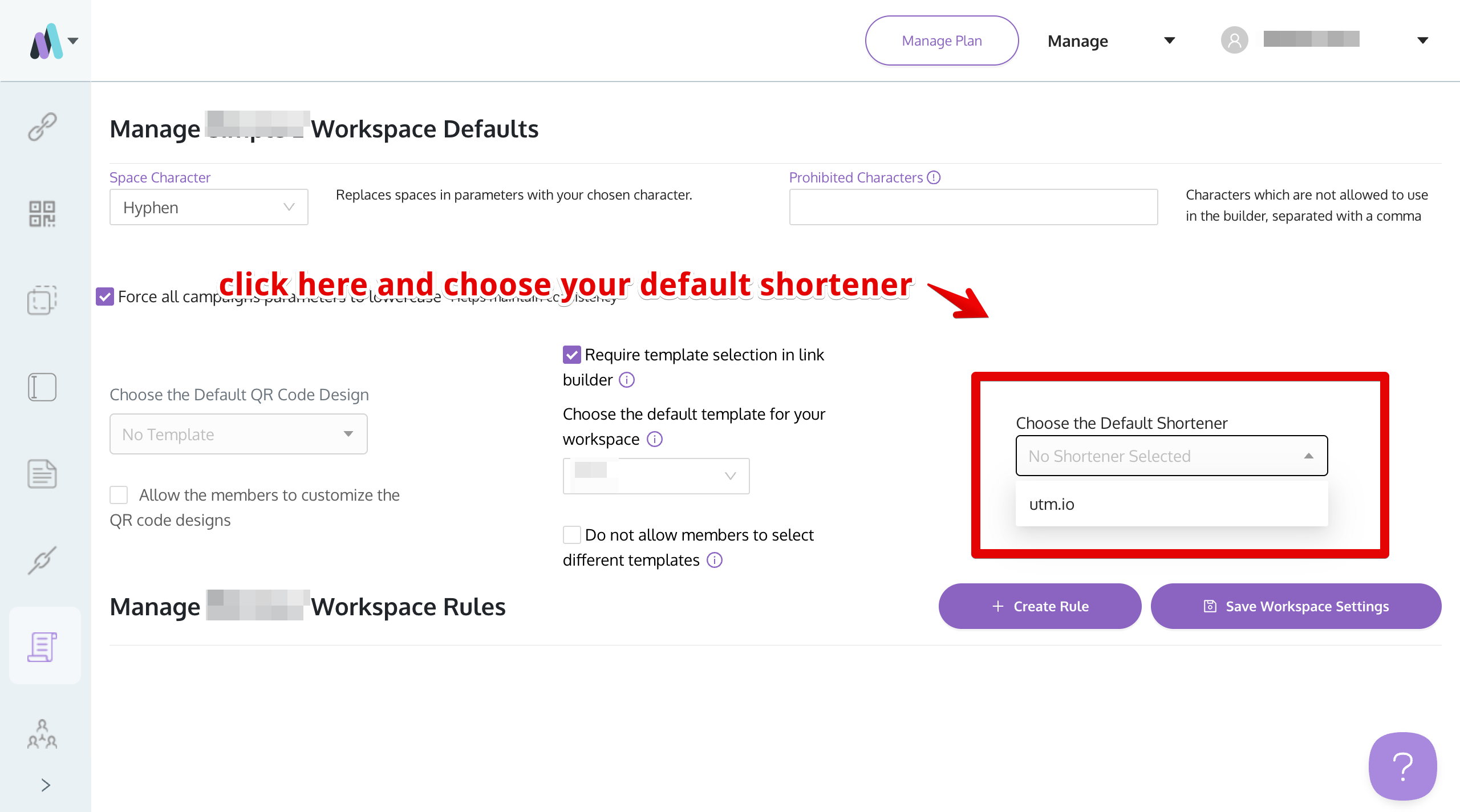
[ Screenshot 1: Rules → Workspace Settings, with the “Choose the Default Shortener” dropdown open, showing the available shorteners ]
| Note: Your selection isn’t applied until you click Save. If you navigate away with unsaved changes, UTM.io will warn you before discarding them. |
What your team sees in the Link Builder
Once a default is set, every time anyone in the workspace opens the Link Builder, that shortener is pre-selected automatically - no need to choose it each time. Members can still switch to a different shortener for an individual link if they need to; the default just sets the starting point.
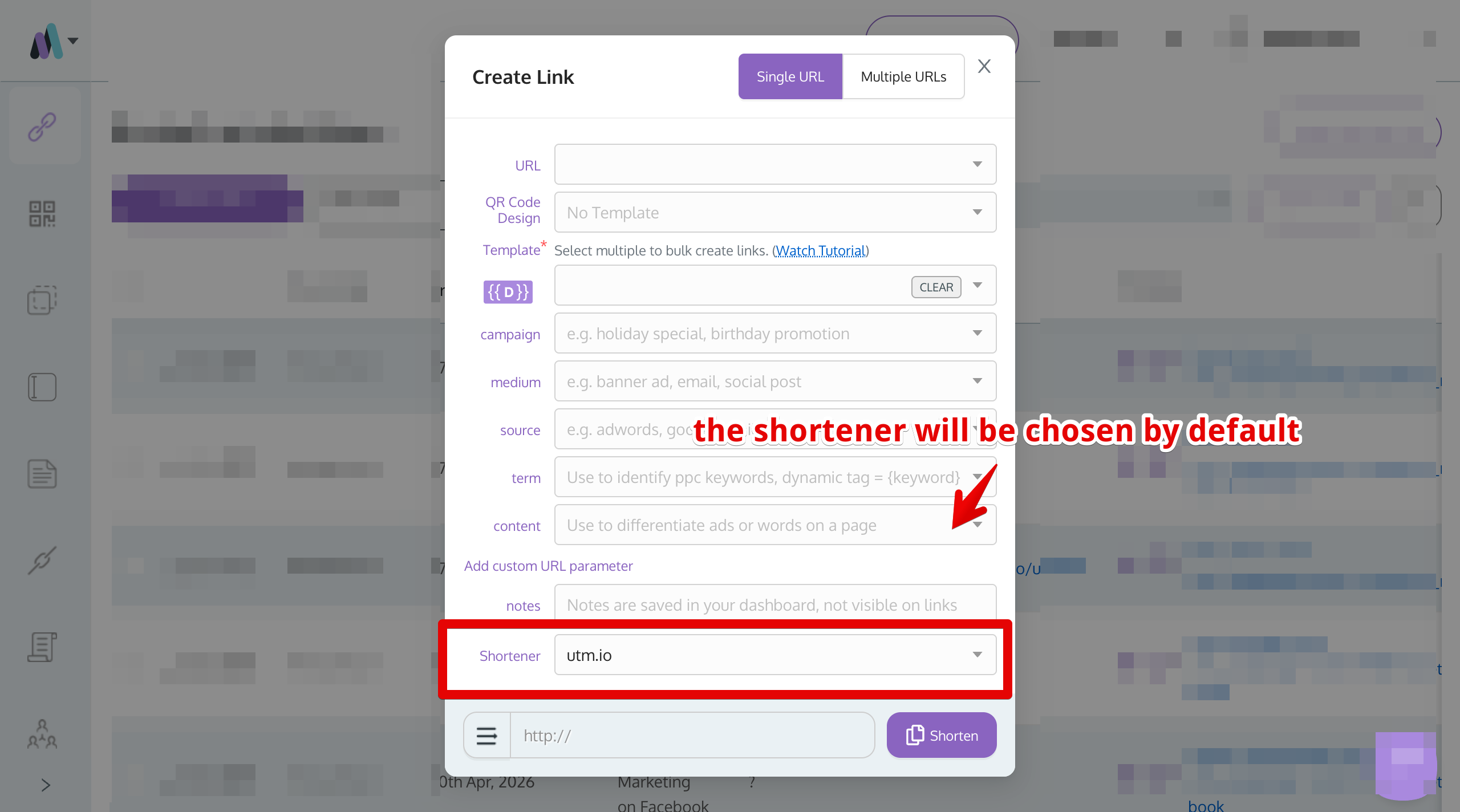
[ Screenshot 2: Link Builder with the default shortener pre-selected ]
Changing or removing the default
- To change it: Pick a different shortener from the Choose the Default Shortener dropdown and click Save Workspace Settings.
- To remove it: Use the clear (✕) button on the dropdown to set it back to No Shortener Selected, then save. The Link Builder will fall back to the standard default.
Good to know
- It’s automatically cleared if the shortener goes away. If you disable a shortener for the workspace or delete it entirely, it’s automatically removed as the default - you won’t be left pointing at a shortener that no longer exists.
- Each workspace is independent. Setting a default in one workspace doesn’t affect your other workspaces.
- Only active shorteners appear. If you don’t see the shortener you want in the list, make sure it’s enabled for the workspace on the Link Shorteners page.