
Require SSO for your account
Stop team members from reaching your UTM.io account with a password.
Require SSO locks a UTM.io account to your identity provider. When it is on, the only way into that account is through your SAML single sign-on (SSO) connection. Email and password sign-in, and Google sign-in, stop granting access to it, so nobody on your team can sidestep your IdP by any other login method.
The setting applies to one account at a time. It does not remove anyone's password and it does not affect other UTM.io accounts they belong to.
Before you start
You need all three:
- SSO already configured for the account. If it is not, the SSO Configuration page shows the setup form instead of this option.
- Owner or admin role on the account. Members do not see the option, and opening the SSO configuration page directly returns a 404.
- SSO included in your plan. If SSO is not part of your subscription, the Setup SSO menu item does not appear at all.
Turn Require SSO on
- Sign in and switch to the account you want to require SSO login for.
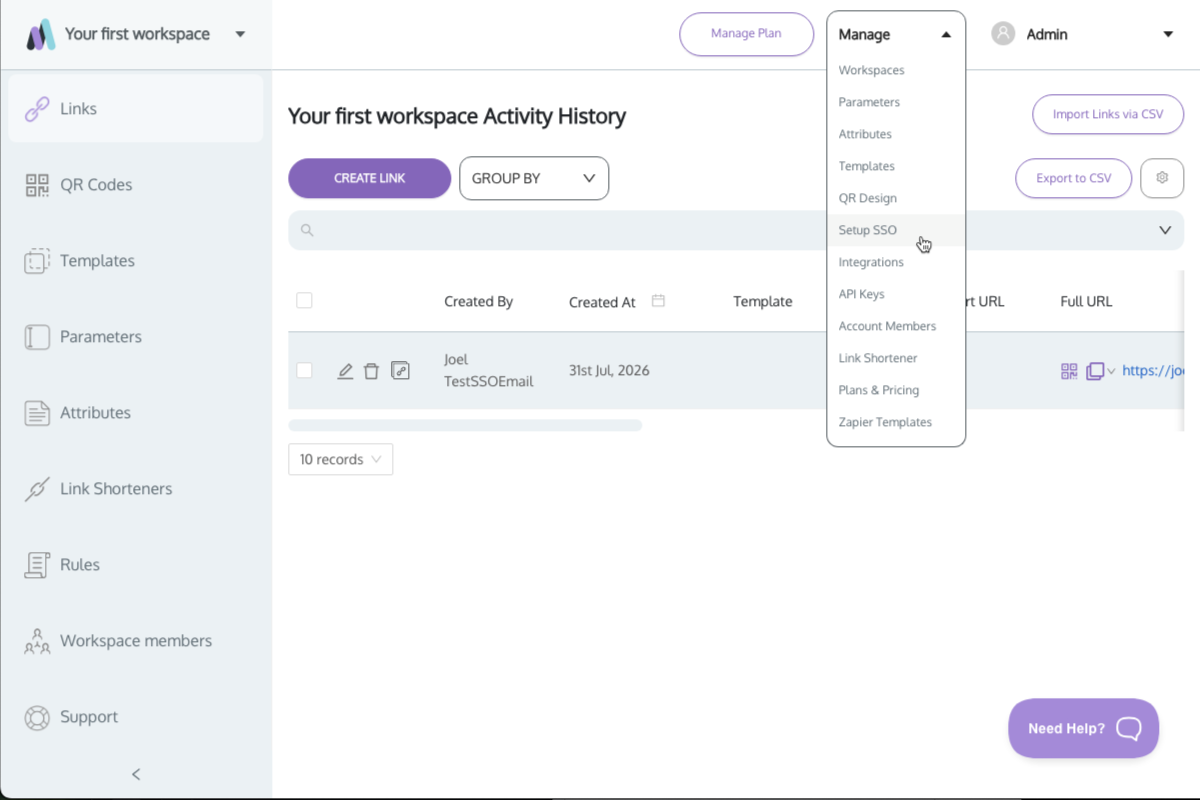
- Open the Manage menu and choose Setup SSO.
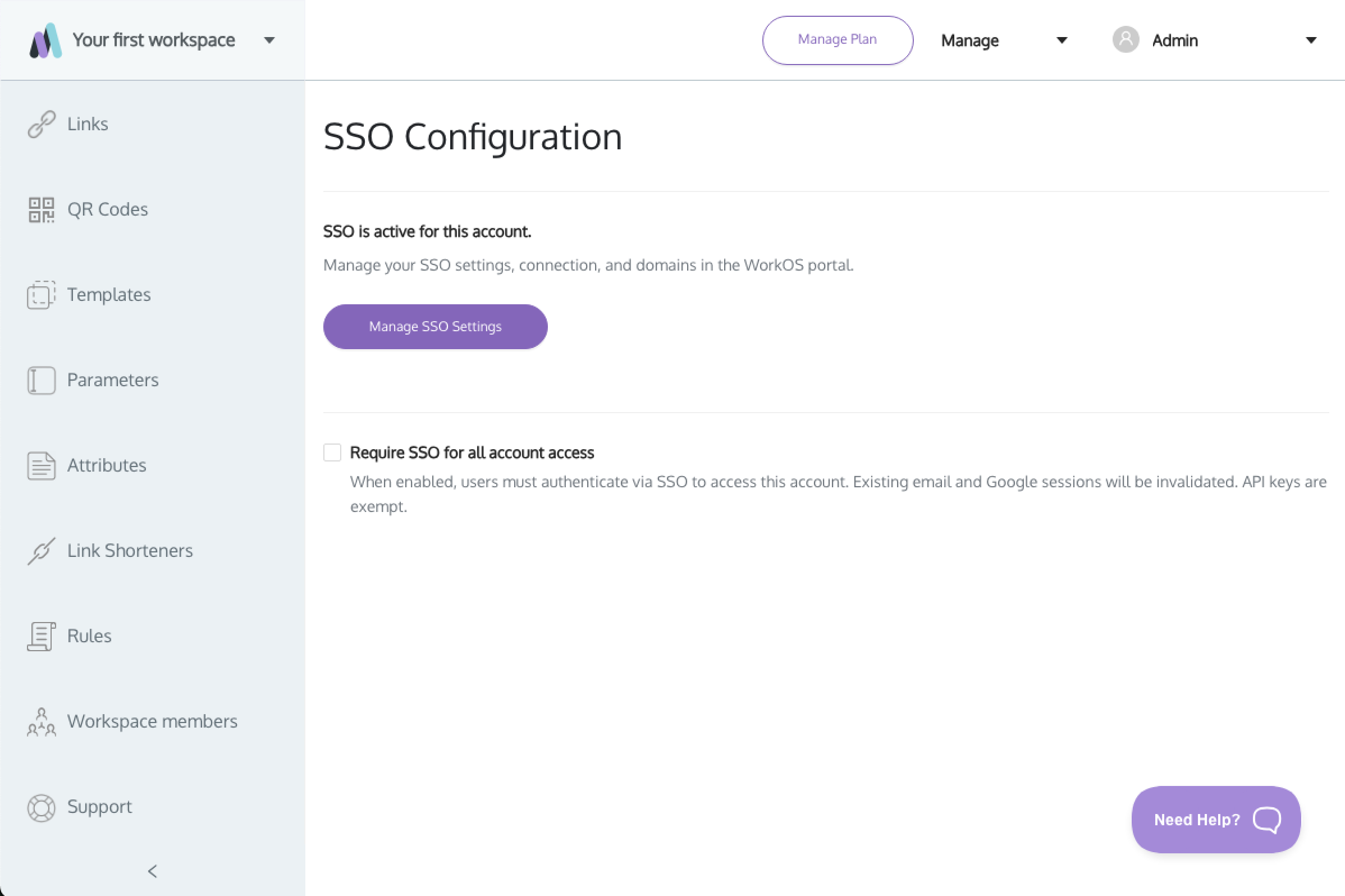
- On the SSO Configuration page, tick Require SSO for all account access.
- A confirmation appears: "Require SSO for this account? Users signed in without SSO will be signed out of this account immediately and must re-authenticate via your SSO provider. Users already signed in via SSO will not be affected." Choose Enable.
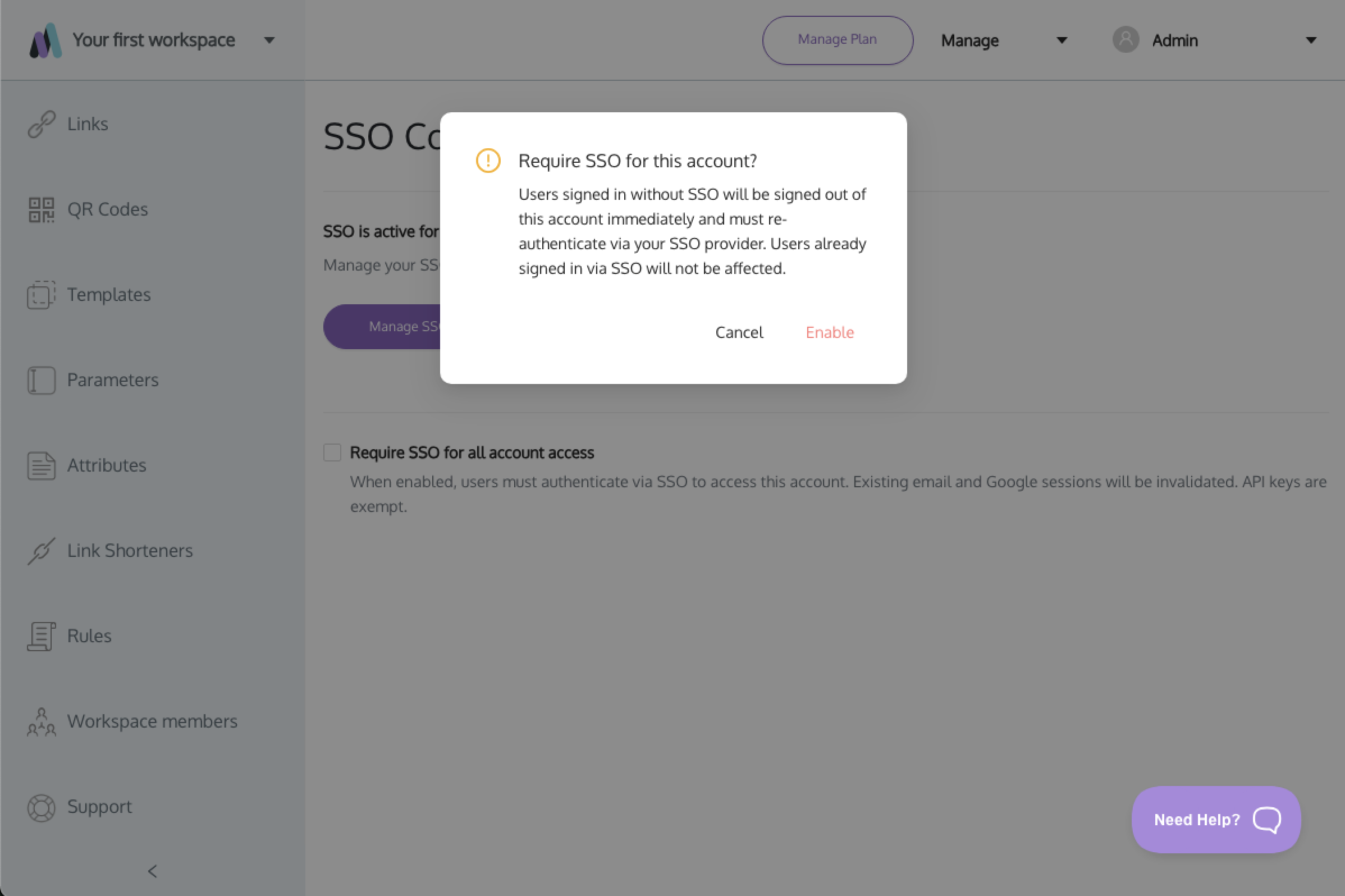
Sign in through SSO first. If you are signed in with a password or with Google when you enable this, you will be signed out of the account along with everyone else and sent to the SSO sign-in page. Signing in via SSO beforehand avoids that.
What happens the moment you enable it
- Non-SSO sessions end immediately. Every active session on that account that was not authenticated through your SSO connection is invalidated. Those users are redirected to the SSO sign-in page on their next action.
- SSO sessions survive. Anyone already signed in through your connection stays signed in.
- API keys keep working. They are exempt from the check, so integrations and scripts are not interrupted.
- Password access to the account stops. A user whose accounts all require SSO who tries to sign in with a password is told SSO is required and is taken to the SSO sign-in page.

What your users see
On the sign-in page, in this order: LOG IN WITH GOOGLE, then SIGN IN WITH SSO, then a divider, then the email and password fields.

Choosing SIGN IN WITH SSO opens the SSO Login page, which asks for a Business Email. The email domain decides which identity provider they are sent to, so they need to use their work email address.

If they belong to more than one UTM.io account: password sign-in still works for their other accounts. Your account appears in the account switcher with an SSO tag next to its name. Selecting it sends them through your IdP first, and after that they can move between accounts freely for the rest of the session.

If they belong to two accounts that both require SSO, under different providers: switching between those two means signing in through each provider in turn. This is uncommon.
Turn Require SSO off
Untick Require SSO for all account access. There is no confirmation step, the change is immediate, and nobody is signed out. Password and Google users regain access to the account straight away without signing in again.
One thing to plan for: a person who has only ever signed in through SSO has no password to fall back on. If you turn Require SSO off and want them to use email and password, they will need to set one through Forgot your password? on the sign-in page.
Troubleshooting
The checkbox is not on the page. The account has no SSO connection yet, so the page is showing the setup form. Complete SSO setup first, then the checkbox appears.

A member cannot find Setup SSO. Only owners and admins see it. Members who open the SSO Setup page directly get a 404. Check the person's role on the account.
Someone cannot get past the SSO sign-in page. Their email domain has to be on the domain list for your connection. Add it in your IdP settings through Manage SSO Settings, which opens the WorkOS portal.
An admin locked themselves out. Sign back in with SIGN IN WITH SSO using your work email. If the SSO connection itself is broken, contact UTM.io support and we can turn Require SSO off for your account. You can then sign in with your email and password. If you have never set a password, create one with Forgot your password? on the sign-in page.
Section you can forward to your team
Our UTM.io account now requires single sign-on. You may have been signed out.
To get back in, go to the UTM.io sign-in page and choose SIGN IN WITH SSO, then enter your work email address. You will be sent to our usual sign-in provider, and back into UTM.io from there.
Your UTM.io password no longer works for this account. If you use UTM.io in another account outside our organization, your password still works there.
Anything you have built stays where it is. This changes how you sign in, nothing else.