
How to Set Up Mobile App Association and Smart Routing Defaults
Open your mobile app straight from your branded short links, and pre-fill the app store links your team uses in Smart Routing.
Table of Contents
- What is Mobile App Association?
- What you'll find on the branded domain screen
- Which plans include it?
- Who can set it up?
- Before you start: what to ask your developer
- How to set up Mobile App Association
- How to set Smart Routing Defaults
- How to check it's working
- Things to know
- Troubleshooting
- FAQs
What is Mobile App Association?
Mobile App Association connects your branded short domain to your iOS and Android apps. Once it's set up, a short link on that domain (for example go.yourbrand.com/spring-sale) opens your app directly on any phone that has the app installed, instead of opening a browser.
Apple calls this Universal Links. Android calls it App Links. Both work the same way: the phone checks a small file on your domain to confirm your app is allowed to open links from it. UTM.io hosts that file on your domain for you. Your developer provides what goes in it.
What you'll find on the branded domain screen
When you add or edit a branded domain, there are two sections below the domain fields.
| Section | Fields | What it does |
|---|---|---|
| Smart Routing Defaults | Default iOS URL, Default Android URL | Pre-fills the iOS and Android destinations when someone turns on Smart Routing for a link on this domain. |
| Mobile App Association | Apple App Site Association, Android Digital Asset Links | Lets links on this domain open your iOS and Android apps. |
Both sections are optional, and you can use one without the other.
Which plans include it?
| Feature | Plans |
|---|---|
| Mobile App Association | Enterprise |
| Smart Routing Defaults | Plus, Professional, Business and Enterprise, plus equivalent legacy plans (anywhere Smart Routing is available) |
Both need a branded custom domain. They don't work on the built-in utm.io domain or on Bitly domains.
If you don't see the Mobile App Association section when you open a branded domain, your plan doesn't include it. Contact us to talk about Enterprise.
Who can set it up?
Only team owners and admins can add or edit branded domains.
Before you start: what to ask your developer
UTM.io hosts the association files, but it doesn't create them. Ask whoever builds your mobile app for:
- The contents of your
apple-app-site-associationfile (iOS). It lists your app's ID and which link paths should open the app. - The contents of your
assetlinks.jsonfile (Android). It lists your app's package name and its signing certificate fingerprint. - App-side setup for your short domain. Your developer also has to add your short domain inside the app (the Associated Domains setting on iOS, and a verified App Links intent filter on Android). The files do nothing on their own without this step.
- A plan for handling short links in the app. When your app opens from a short link, it receives the short link itself (for example
go.yourbrand.com/spring-sale), not the page it points to. Your app needs to know what to do with it.
Tip: if your app already opens links from your main website, your developer already has these files. They only need to add your short domain.
The contents will look something like this. Your values will be different.
Apple App Site Association:
<code>{
  "applinks": {
    "details": [
      {
        "appIDs": ["ABCDE12345.com.yourbrand.app"],
        "components": [{ "/": "*" }]
      }
    ]
  }
}
Android Digital Asset Links:
<code>[
  {
    "relation": ["delegate_permission/common.handle_all_urls"],
    "target": {
      "namespace": "android_app",
      "package_name": "com.yourbrand.app",
      "sha256_cert_fingerprints": ["14:6D:E9:83:C5:73:06:50:D8:EE:B9:95:2F:34:FC:64:16:A0:83:42:E6:1D:BE:A8:8A:04:96:B2:3F:CF:44:E5"]
    }
  }
]
How to set up Mobile App Association
- Log in to app.utm.io.
- In the left menu, click Link Shorteners.
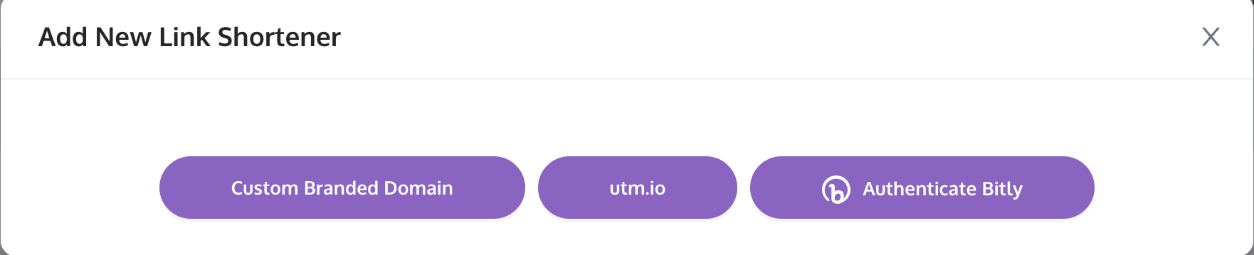
- To add a new domain, click Add Link Shortener, then Custom Branded Domain. To update a domain you already have, click the pencil icon next to it.
- Fill in Domain, Default Redirect and Workspaces as usual. See How to configure branded custom domains for details.
- In Mobile App Association, paste the full contents of your
apple-app-site-associationfile into Apple App Site Association. - Paste the full contents of your
assetlinks.jsonfile into Android Digital Asset Links. - Optional: fill in Smart Routing Defaults (see the next section).
- Click Next.

If this is a new domain, you'll then be asked to point your domain's DNS A record to UTM.io. The association files go live once the domain is connected.
Good to know:
- Paste the file's contents, not a link to the file.
- The Android field must be valid JSON. If it isn't, you'll see "Bad JSON format for Android Digital Asset Links Content" and nothing is saved.
- The Apple field isn't checked when you save, so paste it exactly as your developer sent it.
- Each branded domain has its own files. If your app should open links from more than one short domain, add the files to each one.
How to set Smart Routing Defaults
Smart Routing sends iOS and Android visitors to different destinations, usually your App Store and Google Play pages. Smart Routing Defaults save your team from pasting those store links on every link.
- Open the branded domain (steps 1 to 3 above).
- In Smart Routing Defaults, enter your Default iOS URL (for example, your App Store page) and your Default Android URL (for example, your Google Play page).
- Click Next.
What happens in the link builder:
- When someone building a link on this domain turns on the iOS or Android rule in Smart Routing, the default is filled in for them.
- It only fills an empty field. A URL someone already typed is never replaced.
- While the field holds the default, a "Default for [your domain]" label shows under it. The default is also pinned at the top of the field's suggestions.
- Changing a default later doesn't change existing links. It only applies to links built after the change.
The URLs must be valid web addresses. If you leave off https://, UTM.io adds it for you.
How to check it's working
1. Check the files are live. Open these addresses in a browser, replacing go.yourbrand.com with your domain:
- iOS:
https://go.yourbrand.com/apple-app-site-association - Android:
https://go.yourbrand.com/.well-known/assetlinks.json
You should see the contents you pasted. A blank page means that field is empty. An error or a different website means the domain isn't connected to UTM.io yet.
2. Test on a real phone with your app installed. Send yourself a short link on that domain in a message or note, then tap it. Typing a link into the browser's address bar often opens the website instead, so always test by tapping.
3. Allow time on iOS. Apple picks up a new or changed file within about 24 hours, and phones check for updates roughly once a week after the app is installed. Reinstalling the app on your test phone makes it check again.
Things to know
- The app must be installed. If it isn't, the link opens in the browser as usual. If the link also uses Smart Routing, iOS and Android visitors go to the destinations you set there, such as your app store pages.
- It won't open a specific screen after an install. If someone installs your app after tapping a link, the app won't know which link they tapped. This is sometimes called deferred deep linking.
- Your app decides which screen opens. The association file controls which links are allowed to open the app. What people see once it opens is up to your app.
- Opening the app skips the browser. When a link opens your app directly, the phone doesn't load the short link in a browser, so the usual redirect to your destination doesn't happen on its own. Your app has to look up where the short link points. Talk to your developer about how these opens should show up in your reporting.
Troubleshooting
| Issue | What to check |
|---|---|
| I don't see the Mobile App Association section | Your plan doesn't include it. It's available on Enterprise. |
| "Bad JSON format for Android Digital Asset Links Content" | The Android field has a typo or extra text. Ask your developer for the file again and paste all of it. |
| The check address shows a blank page | That field is empty. Open the domain and paste the file contents again. |
| The check address shows an error or a different website | The domain isn't connected to UTM.io yet. Check the domain's status on the Link Shorteners page. |
| Links open the browser instead of the app | Check that the app is installed, that the app's own settings list this exact short domain, and that the paths in the file cover the link. On iOS, wait up to 24 hours or reinstall the app. Test by tapping a link in a message, not by typing it. |
| Smart Routing isn't filling in my store link | The default only fills an empty field, and only for links on that branded domain. Check the link uses the domain you set the default on. |
| I changed a default but existing links didn't change | That's expected. Defaults only apply to new links. To update an existing link, edit its Smart Routing. |
FAQs
Do I need a developer to set this up?
Yes. The files and the app-side settings come from the team that builds your app. In UTM.io, you only paste the files in.
Does UTM.io create the files for me?
No. You paste the contents your developer provides, and UTM.io hosts them on your domain.
Can I use this with utm.io or Bitly links?
No. Mobile App Association needs a branded custom domain.
Does this replace Smart Routing?
No, they work together. Mobile App Association opens your app when it's installed. Smart Routing decides where iOS and Android visitors go when it isn't.