
How to Import UTM Parameters & Attributes via CSV
Parameter / Attribute CSV import allows you to quickly populate and update your parameter and attribute taxonomy at scale. Instead of manually adding values one by one, you can import hundreds or thousands of values in seconds.
Available on: All paid plans
Who can import:
| Role | Can Import via CSV?
|
|
| Account Owner
|
Yes ✅ | |
| Account Admin | Yes ✅ | |
| Workspace Admin | Yes ✅ | |
| Regular Member | No ❌ |
Common Use Cases for CSV Import
CSV import is ideal for:
- Migrating from another tool : Bring your existing taxonomy into UTM.io without manual re-entry
- Setting up new workspaces : Quickly establish approved values for your team
- Bulk updates : Add pretty names or new values to multiple parameters and attributes at once
- Standardizing across teams : Share a CSV file to ensure everyone uses the same taxonomy
- Scaling your taxonomy : Efficiently manage hundreds of values as your campaigns grow
Understanding Parameters vs. Attributes
Parameters
Parameters are tracking codes added as query parameters to your URL and sent to your analytics platform. They include standard UTM parameters (source, medium, campaign, term, content) and any custom parameters you create.
Attributes
Attributes are metadata fields used in UTM.io to enrich link data, organize campaigns, and support a consistent taxonomy. Attributes themselves are not added to the URL as query parameters. However, their values can be dynamically inserted into parameters when referenced via dynamic variables. This allows you to store and manage additional context without expanding the URL with extra tracking parameters, while still passing relevant values when needed.
Things to Know Before Importing
- Avoid duplicate column names : Each column header must be unique (case-insensitive). For example, "test" and "Test" are considered duplicates.
- Existing values are preserved : Importing only adds new values; it never removes or replaces existing ones.
- Date and number formats cannot be imported: You cannot import values into parameters or attributes that are configured with date or number formats. The import will be rejected.
- Pretty names format: To add human-readable labels, use
prettyname:as a prefix (e.g.,prettyname:utm_source). You can Learn more about pretty names here.
Best Practices
- Start with a small test : Test your CSV with a few values before performing bulk imports to ensure the format is correct
- Download the example CSV : Use the provided template files in the panel to avoid format errors and understand the required structure
- Backup your current taxonomy : Export your existing parameters and attributes before major imports as a safety measure
- Use consistent casing : Pick a casing convention for your taxonomy names, even though matching is case-insensitive
- Review pretty names carefully : Pretty names will update existing values, so ensure they're accurate before importing
How to Import
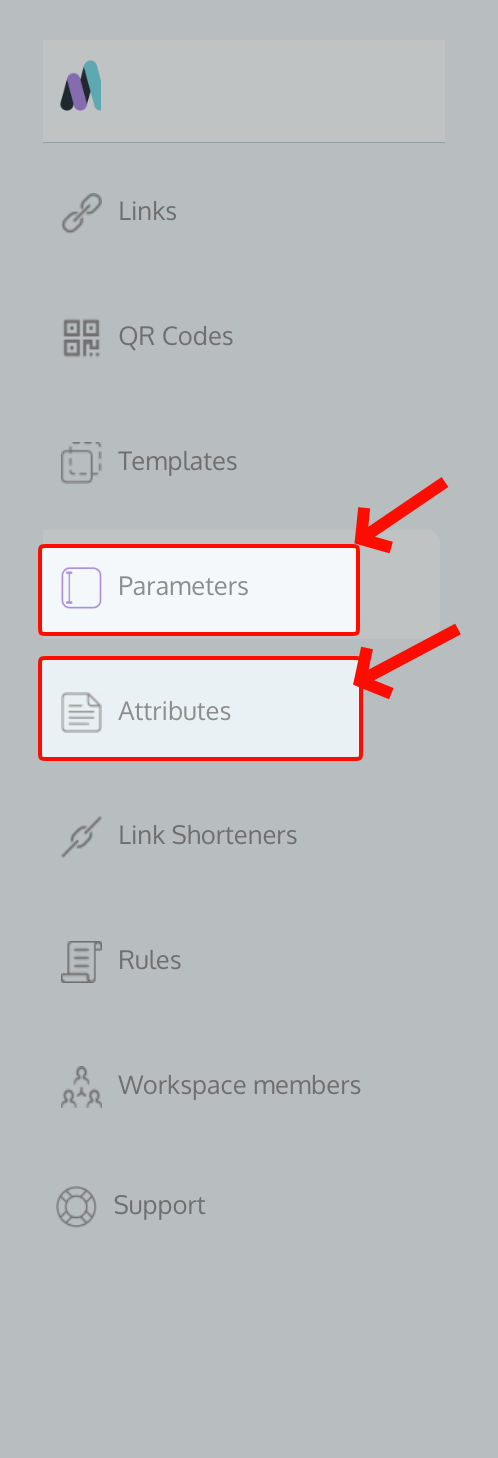
Step 1: Navigate to the Parameters or Attributes section in your workspace
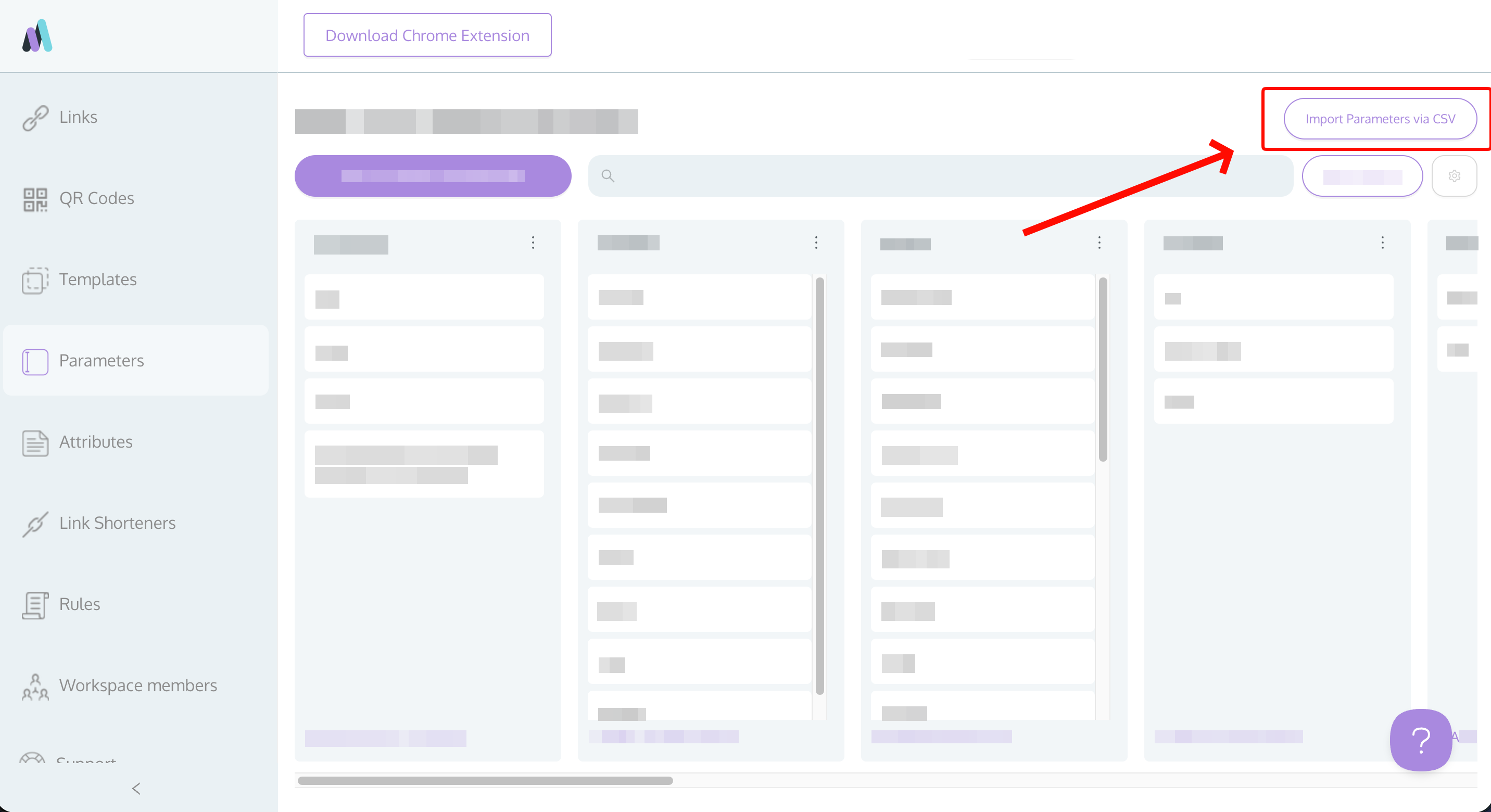
Step 2: Click the "Import Parameters via CSV" or "Import Attributes via CSV" button
Step 3: Follow the on-screen instructions in the modal and upload your CSV file
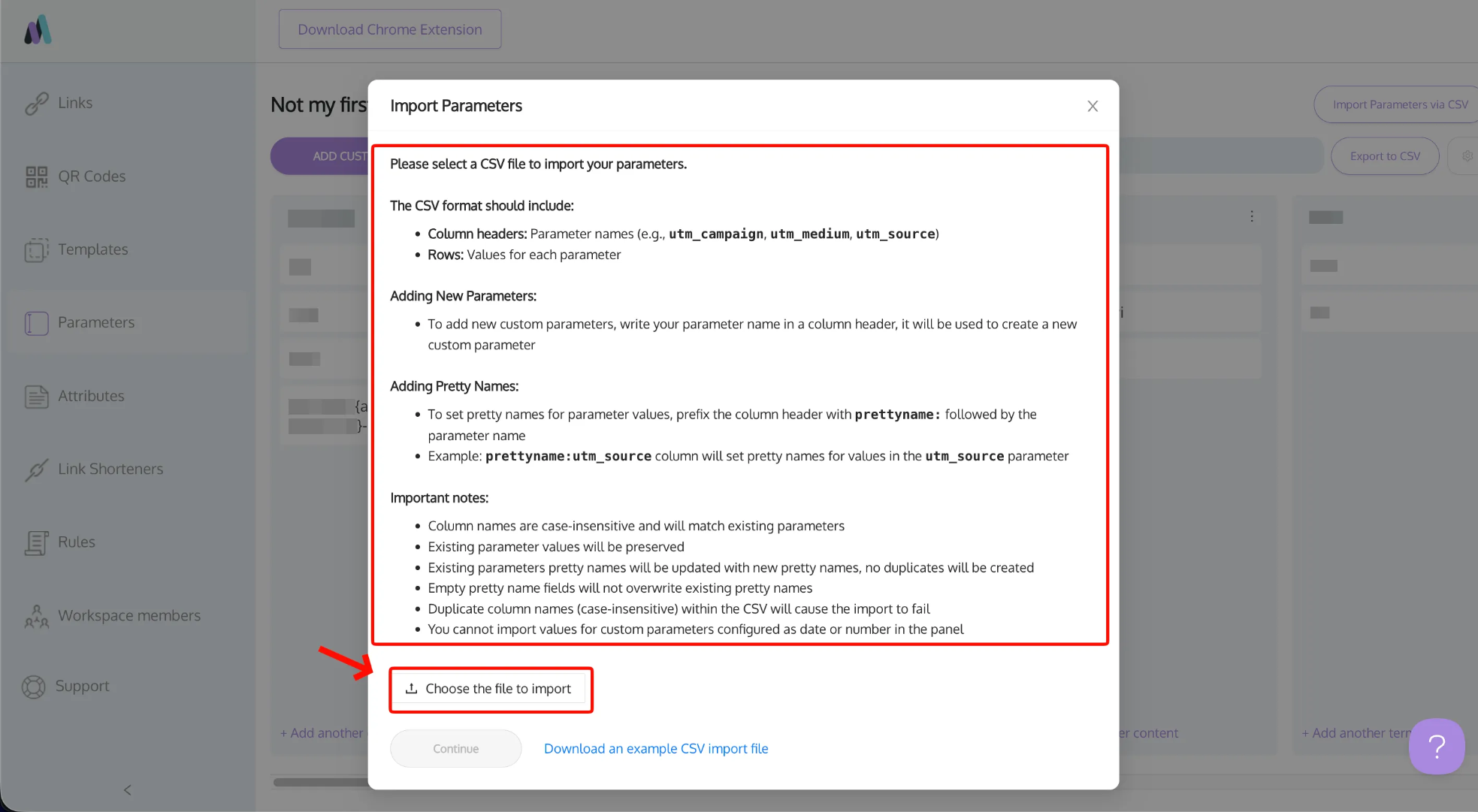
That's it! The system will handle the rest.
How CSV Import Works
When you import a CSV:
- New parameters/attributes are created : Column headers that don't match existing items create new custom parameters or attributes
- Case-insensitive matching : "test", "Test", and "TEST" are treated as the same parameter/attribute value.
- Original casing is preserved: If you had "Facebook" with a capital F, it stays that way even if your CSV has "facebook" in lowercase
- Values are additive : Existing values stay; new values from your CSV are added
- Pretty names update : If you provide new pretty names, they'll update existing ones
- Empty pretty name cells preserve existing values: If a parameter or attribute already has a pretty name and your CSV has an empty cell for it, the original pretty name in the panel will be preserved
Frequently Asked Questions
- What happens if I have duplicate columns in my CSV?
- The import will be rejected with an error. This includes duplicates with different casing (e.g., "Facebook" and "facebook").
- Will importing overwrite my existing values?
- No. The import preserves all existing values and only adds new ones. Pretty names will update if you provide new ones.
- Can I import parameters and attributes in the same CSV?
- No. You must import them separately using their respective import buttons in the Parameters or Attributes sections.
- What if I forget the
<strong>attribute:</strong>prefix for attributes?- The import will fail with an error message. Make sure all attribute column headers start with
attribute:(e.g.,attribute:region).
- The import will fail with an error message. Make sure all attribute column headers start with
- What if my attribute / parameter has a number format and my CSV has text values?
- The import will be rejected. You cannot import attributes or parameters configured as date or number formats.
Troubleshooting
| Issue | Solution | |
| "Unable to Import Parameters/Attributes" | You're importing the wrong format in the wrong section. For attributes, ensure all column headers include the attribute: prefix.
|
|
| "Duplicate column names detected" | Your CSV contains duplicate column headers (case-insensitive). Remove duplicates and try again.
|
|
| "Invalid CSV format" | Your CSV file is malformed. Open it in Excel or Google Sheets, verify formatting, and re-save as CSV.
|
|
| "Format mismatch error" | You're trying to import into a parameter or attribute configured with a date or number format. CSV import does not support date or number-formatted fields. Remove these columns from your CSV or change the field format to text in your workspace settings first.
|
|
| Pretty names not updating | Verify your pretty name column headers use prettyname:parameter_name or prettyname:attribute_name format.
|
|
| New parameter/attribute not created | For attributes, ensure the column header includes the attribute: prefix. For parameters, check for special formatting or hidden characters.
|
Need Help?
If you have any questions or are facing any issues, please contact us at [email protected]