
UTM Templates: Create, Manage, Share, and Require
A UTM template is a saved set of UTM values that fills in the link builder with one click. Templates keep your team's links consistent and save you from typing the same source, medium, and campaign every time.
On this page
- What a template includes
- Who can manage templates
- Create a template
- Use templates when building links
- Find, edit, duplicate, or delete templates
- Share templates across workspaces
- Import templates via CSV
- Require templates for link creation
- FAQ
What a template includes
A template can store any combination of:
- The five standard UTM parameters: campaign, medium, source, term, and content
- Custom URL parameters
- Attributes (if your plan includes Attributes)
- A link shortener
- Notes
Templates belong to a workspace. You only see the templates of the workspace you are working in, so check that the right workspace is selected before you build links.
Templates work everywhere you build links: the web app link builder, the UTM.io Chrome extension, and the bulk link builder.
Tip: Create one template per recurring campaign or channel, for example "Monthly Newsletter" or "LinkedIn Ads". Some teams use templates only to lock in source, medium, and shortener, and fill in the campaign for each link.
The number of templates you can create depends on your plan. See the pricing page for details.
Who can manage templates
| Action | Account Owner | Account Admin | Workspace Admin | Member | Viewer |
| Use templates in the link builder | Yes | Yes | Yes | Yes | Yes |
| See the Templates page | Yes | Yes | Yes | No | No |
| Create, edit, duplicate, and delete templates | Yes | Yes | Yes | No | No |
| Copy templates to other workspaces and import via CSV | Yes | Yes | Yes | No | No |
| Require templates for link creation | Yes | Yes | Yes | No | No |
| Manage templates across all workspaces (Manage menu) | Yes | Yes | No | No | No |
Members and Viewers who need a new or updated template should ask an admin. For a full breakdown of roles, see User Roles & Permissions.
Create a template
From the Templates page
- Select Templates in the left sidebar.
- Click Create Template.
- Enter a Template Name.
- Fill in the parameter values you want to reuse. Leave a field empty if it changes from link to link.
- Optional: add attributes and choose a shortener.
- Optional: under Workspaces, add any other workspaces that should get this template. This field appears when you have access to more than one workspace.
- Optional (Account Owners and Admins): check This is a common template, and should be added to all future workspaces.
- Click Save Template.

If your account has API access, you will also see a Template Slug field. Use the slug to refer to the template when you work with the UTM.io API.
From the link builder
In the web app or the Chrome extension, open the Template dropdown and choose + Add New UTM Template.

Use templates when building links
- Click Create Link in the web app, or open the UTM.io Chrome extension.
- Enter your destination URL.
- Pick a template from the Template dropdown. Its values fill in the matching fields.
- Review the fields, adjust anything specific to this link, and create the link.
- Bulk create: select more than one template to create one link per template in a single step. See How to use the bulk link builder.
- Shortener: if the selected template includes a shortener, that shortener is used for the link, even when your workspace has a default shortener. See Set a Default Shortener for Your Workspace.
- Required templates: if your admin requires templates, the Template field is mandatory. See Require templates for link creation.
Find, edit, duplicate, or delete templates
All of these start on the Templates page in the left sidebar.
- Find: use the search box to filter by any value, the gear icon to show or hide columns, and the Created At column filter to narrow by date.
- Edit: click the pencil icon next to the template, make your changes, and click Save Template.
- Duplicate: click the duplicate icon next to the pencil. A copy named "[template name] copy" opens so you can adjust it and save it.
- Delete: select the checkbox next to one or more templates, click Actions > Delete templates, and confirm.
You can also edit or delete a template from the link builder. Open the Template dropdown and use the pencil or trash icon next to the template name.

Good to know
- Changes to a template apply to new links only. Links you already created keep their values.
- If the template also exists in other workspaces, UTM.io asks whether to apply the change (or the deletion) to all workspaces or only to the current one.
- If you delete the template that is set as your workspace's default template, the default is reset. See Require templates for link creation.
Share templates across workspaces
Templates live in a workspace, but you can reuse them in others:
- Copy existing templates: on the Templates page, select the templates, click Actions > Copy to workspace, choose the workspaces, and confirm.
- Add workspaces while creating or editing: use the Workspaces field in the template window.
- Add to all future workspaces: Account Owners and Admins can mark a template as a common template so it is added to every new workspace.
- Manage all templates in one place: on the Business and Enterprise plans, Account Owners and Admins can open Manage > Templates in the top menu to see the templates from every workspace and filter them by workspace.
When you create a new workspace, you can also check Add sample templates to workspace to start with a few example templates.

Import templates via CSV
- On the Templates page, click Import templates via CSV.
- Click Download an example CSV import file and use it as your starting point.
- Add one row per template. The file must include these column headers:
template_name, utm_campaign, utm_medium, utm_source, utm_term, utm_content, notes - Upload the file and confirm the import.
To import more fields with your templates:
- Any additional column is imported as a custom parameter.
- A column header that starts with
attribute:is imported as an attribute. - A column header that starts with
prettyname:sets the pretty name of a parameter or attribute value.
To import parameter and attribute values on their own, see How to Import UTM Parameters & Attributes via CSV.
Require templates for link creation
Admins can make template selection mandatory in the link builder, set a default template, or lock members to a single template. This keeps every link in the workspace on your approved UTM conventions.
Available on: all paid plans (Plus, Professional, Business, and Enterprise)
Who can set it up: Account Owners, Account Admins, and Workspace Admins
Set it up
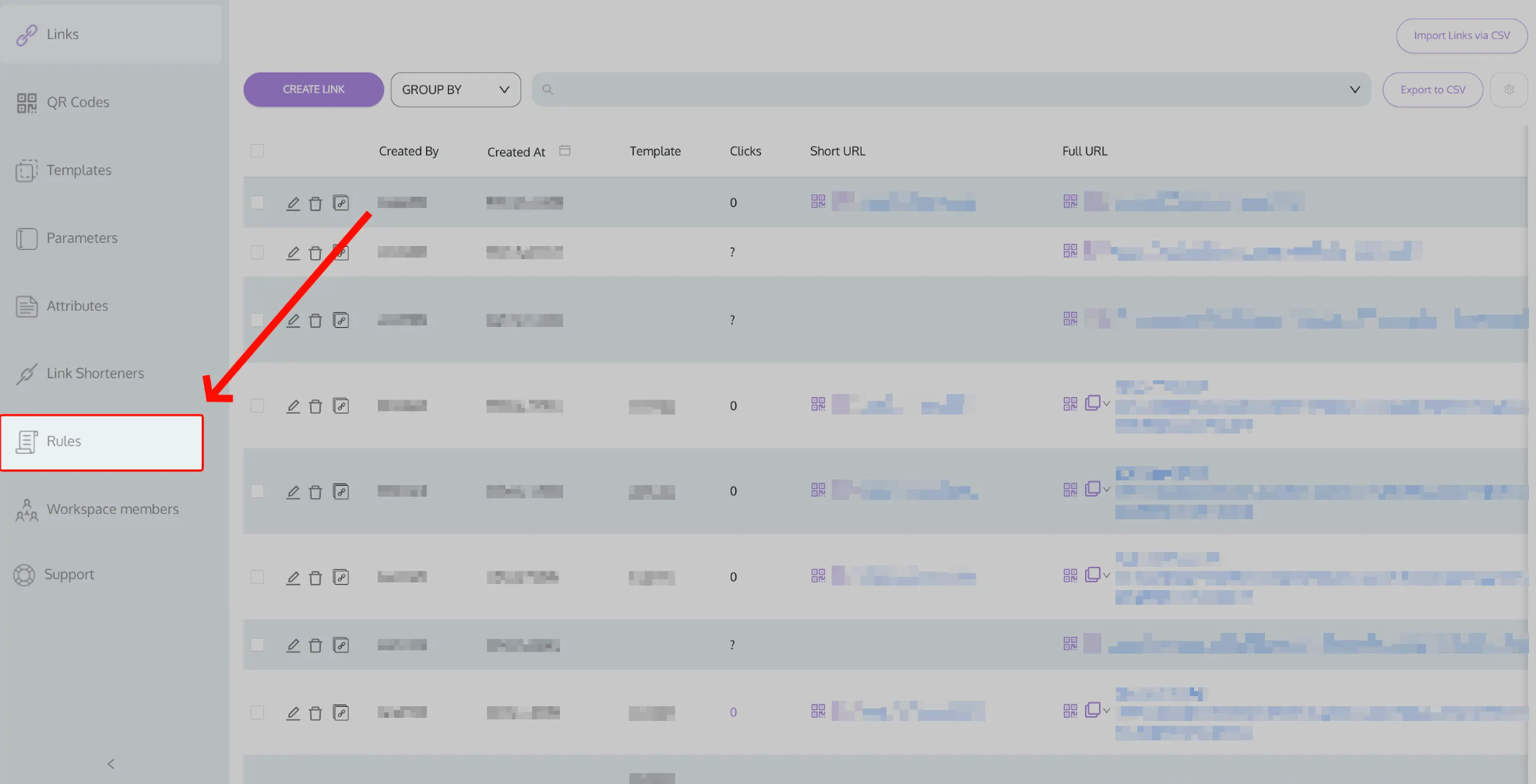
- Select Rules in the left sidebar.
- In Workspace Settings, find the template options.
- Choose one of the three setups below.
- Click Save Workspace Settings. Changes only apply after you save, and UTM.io warns you if you try to leave the page with unsaved changes.
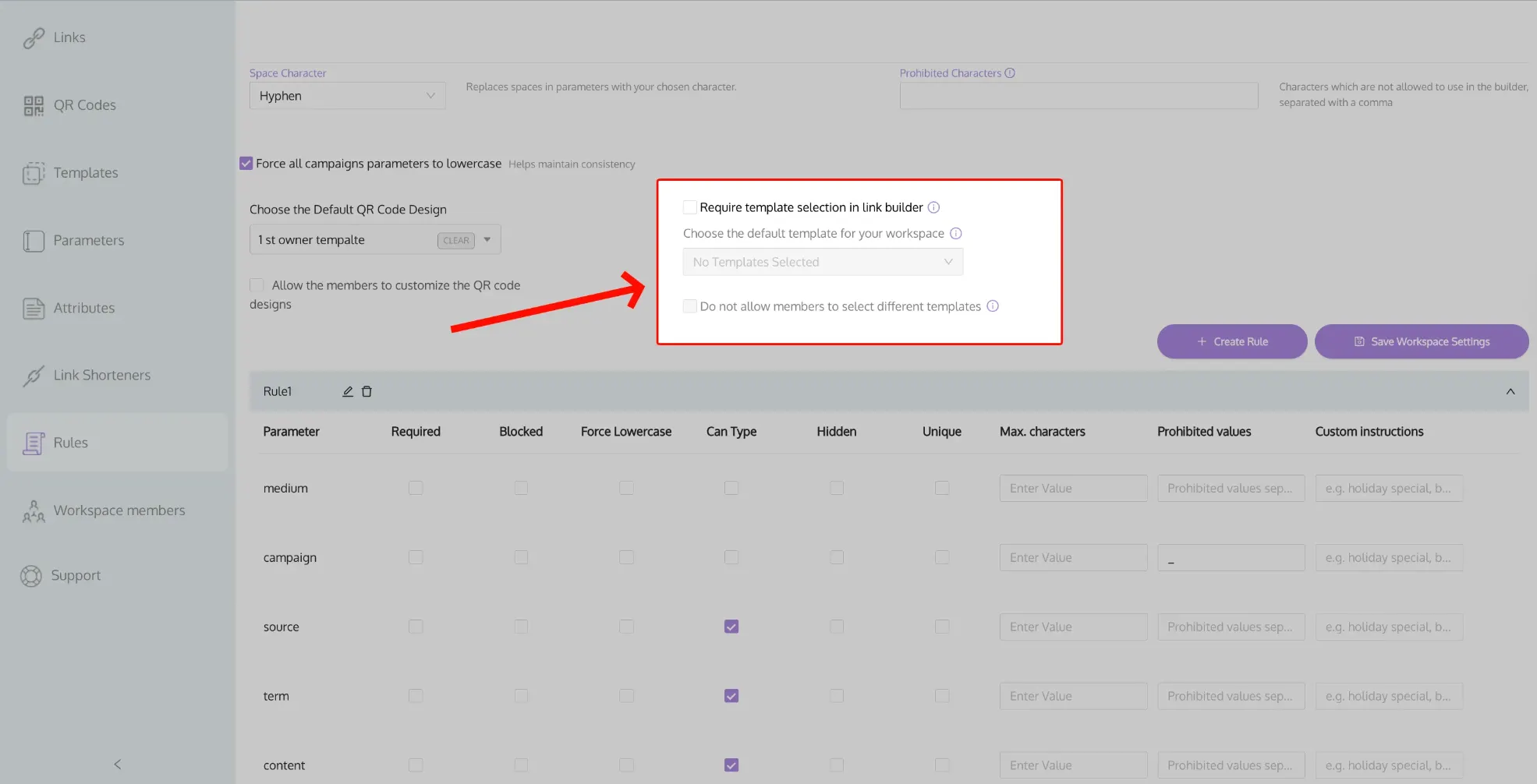
The requirement is off by default. The workspace needs at least one template before you can turn it on.
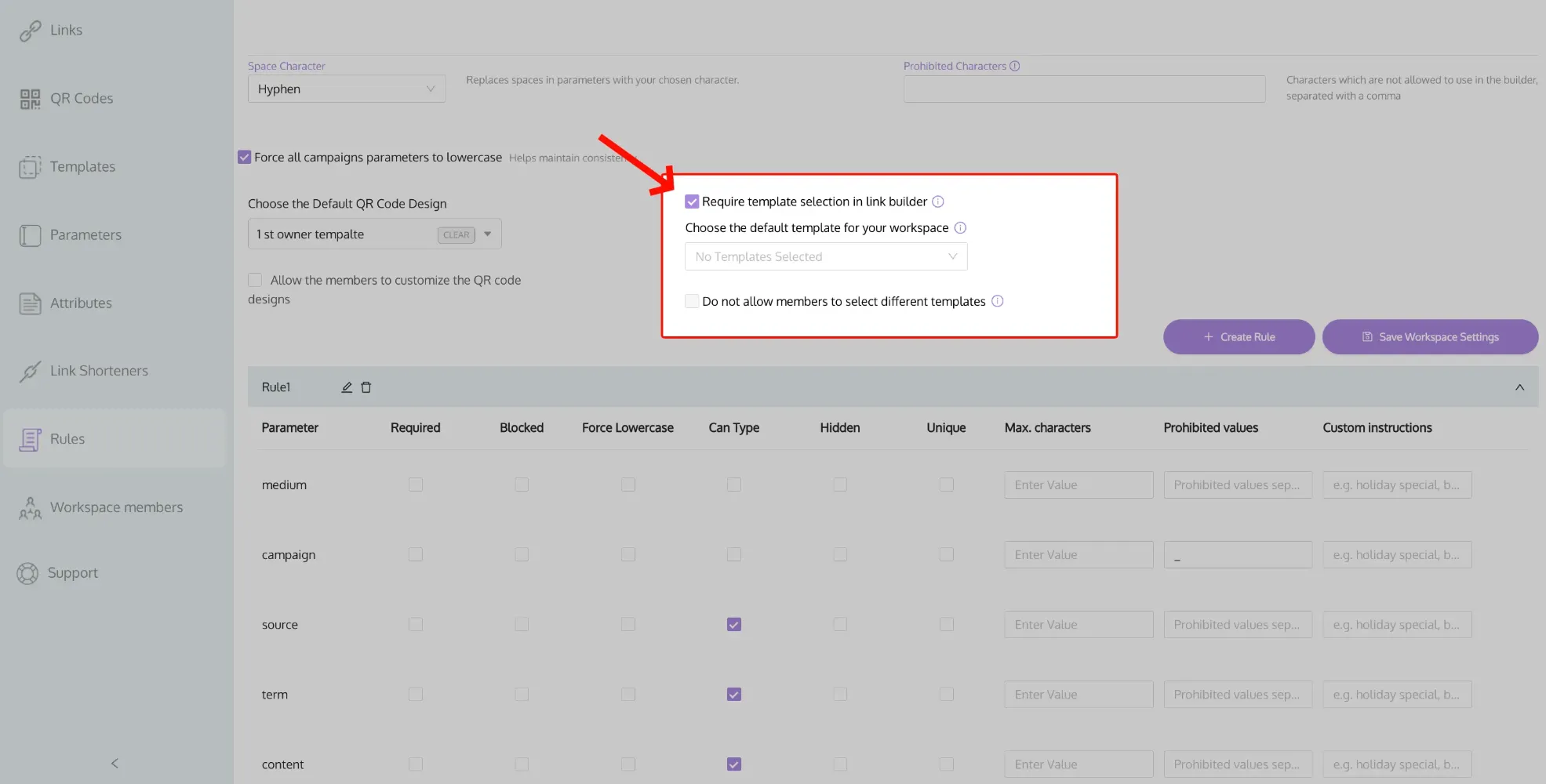
Option 1: Require a template
Check Require template selection in link builder. Members must pick a template before they can create a link, but they can choose any template in the workspace.
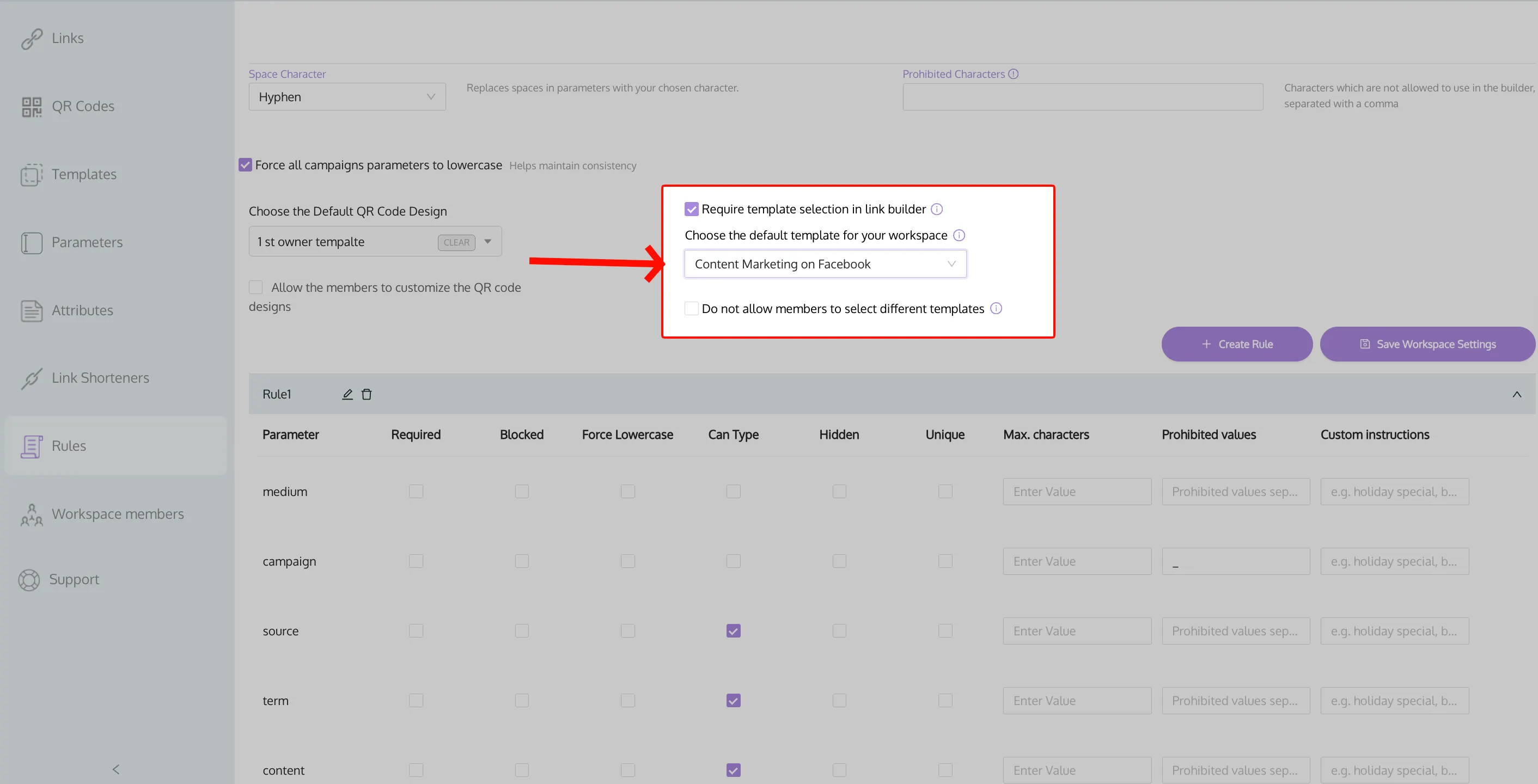
Option 2: Set a default template
After you turn on the requirement, choose a template in the default template dropdown. It is pre-selected every time someone opens the link builder, and members can still switch to another template.
Option 3: Lock the default template
After you choose a default template, check Do not allow members to select different templates. The Template dropdown is disabled for members, and every link uses the default template.
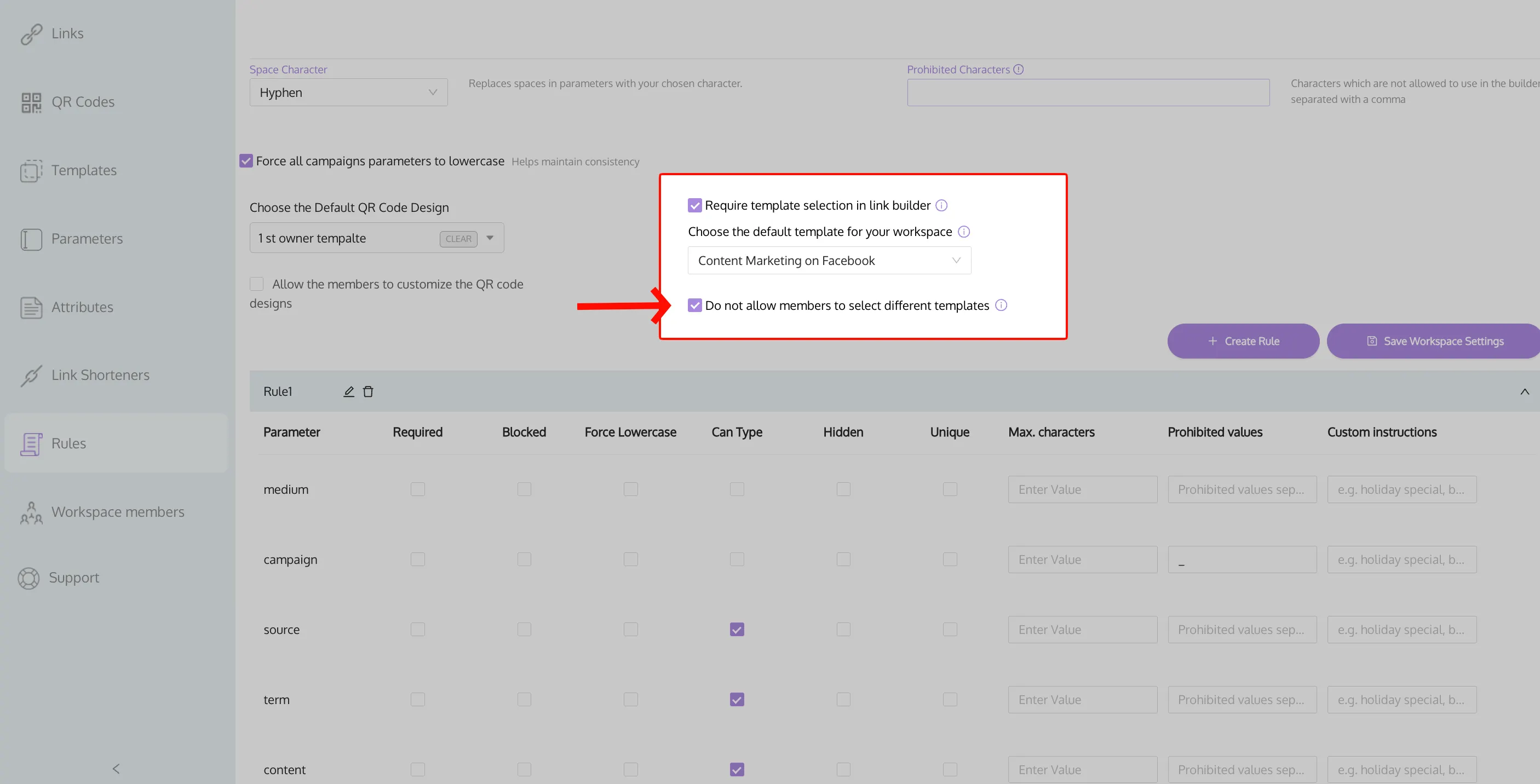
What members see
| Require template | Default template | Do not allow changes | Member experience |
| Off | N/A | N/A | Templates are optional |
| On | None | N/A | Must pick a template. An error appears if they try to create a link without one. |
| On | Set | Off | Default template is pre-selected. They can switch to another template. |
| On | Set | On | Default template is pre-selected and locked. The dropdown shows "Template selection is managed by your admin". |
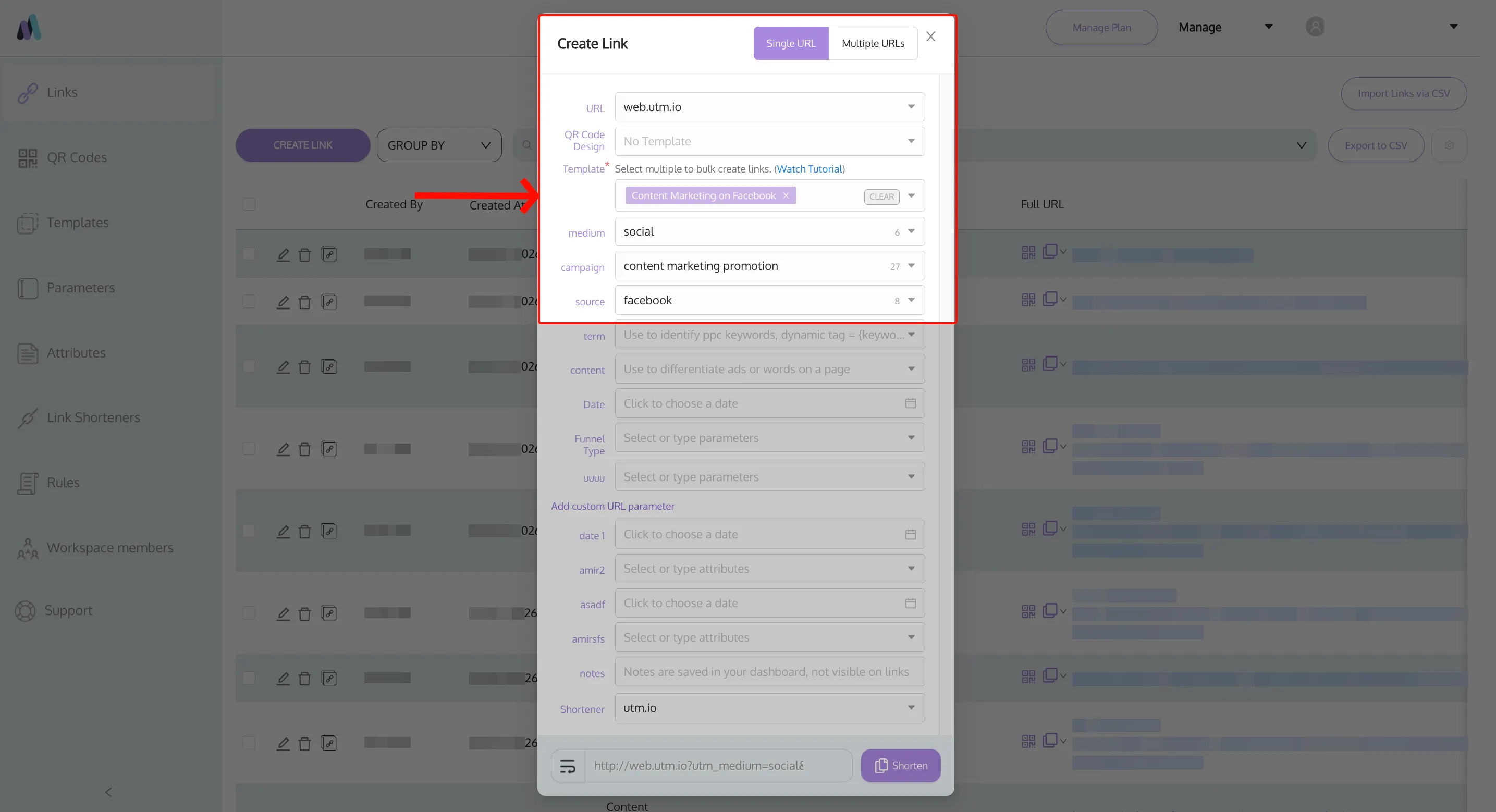
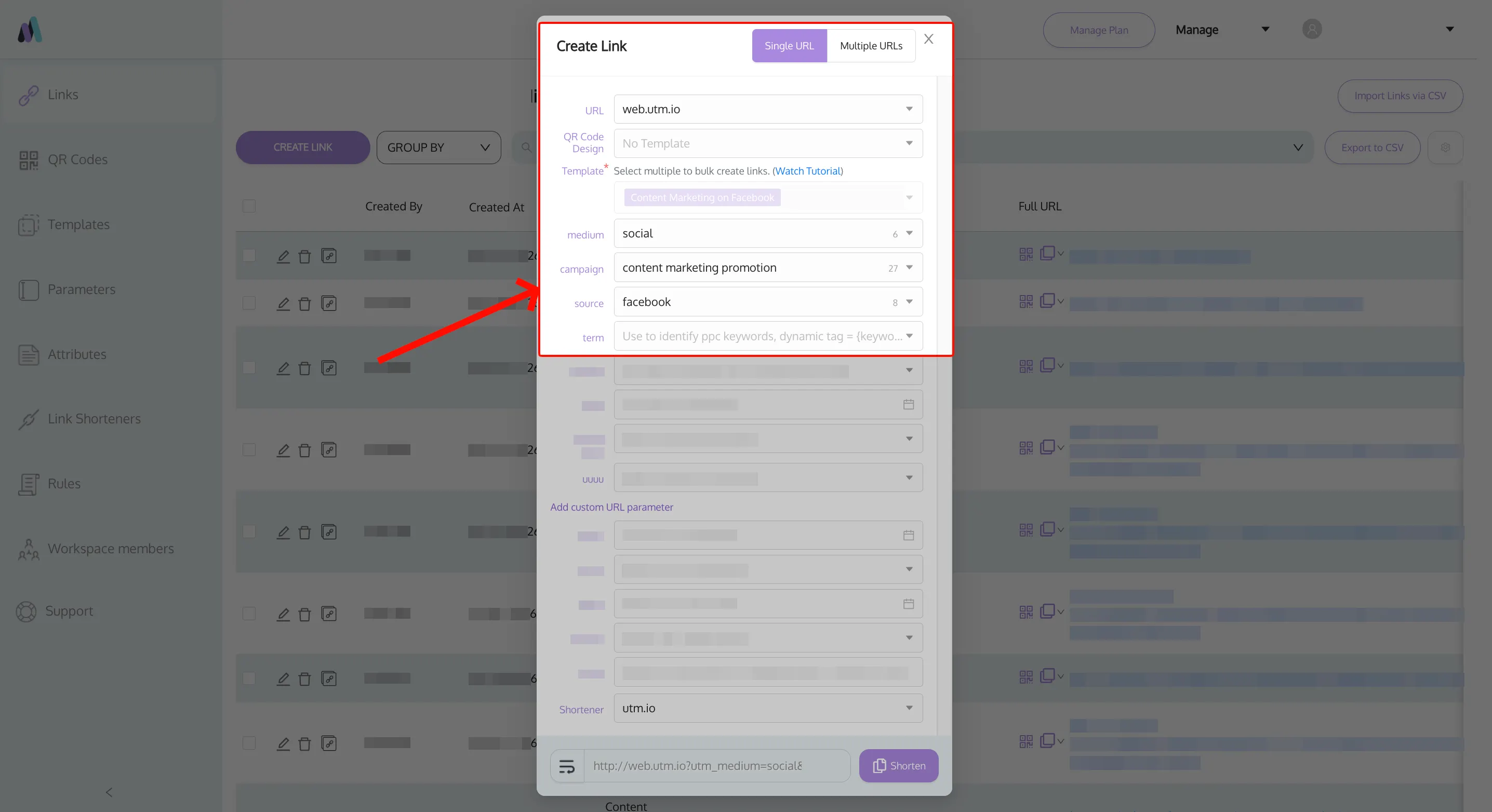
These settings apply to the link builder in both the web app and the Chrome extension. Members do not see the template settings on the Rules page; they only see the effect in the link builder.
Best practices
- Talk to your team before you turn this on. Requiring or locking templates changes how everyone builds links.
- Start flexible: require a template but let members choose any template. Add a default or a lock later if you need tighter control.
- Test on one small workspace before rolling it out to all workspaces.
Common questions about template requirements
What if my workspace has no templates?
The template requirement controls stay disabled until you create your first template.
What if I delete the default template?
You will see a warning first. If you continue, the default template is reset to none and members can select any template again. The requirement itself stays on.
What if I edit the default template?
New links use the updated values right away. Existing links do not change, and your requirement settings stay the same.
Does the requirement apply to every link in the workspace?
It applies to links built in the link builder, in both the web app and the Chrome extension. Links created through the UTM.io API, Zapier, or CSV import are not checked.
Troubleshooting
The default template dropdown is disabled
Turn on Require template selection in link builder first, and make sure the workspace has at least one template.
I can't check "Do not allow members to select different templates"
Choose a default template first. This option is only available once a default is set.
My changes didn't stick
Click Save Workspace Settings after making changes, and confirm you are an Account Owner, Account Admin, or Workspace Admin.
FAQ
Why don't I see Templates in the sidebar?
The Templates page is available to Account Owners, Account Admins, and Workspace Admins. Members and Viewers use templates from the Template dropdown in the link builder.
Why can't I create another template?
Your account has reached its plan's template limit. Delete templates you no longer use, or upgrade your plan.
I can't find a template I created.
Check that you are in the right workspace. A template only shows in the workspaces it was added to.
What happened to Presets?
Presets is the old name for templates. They work the same way.
Need help?
Contact us at [email protected].