
Power Builder: Build, Preview, and Create Links in Bulk
The Power Builder creates many tracked links at once from a grid. You put a URL in each row and pick values for each parameter, and every combination of those values becomes a link. You see every link in a preview before anything is created.
On this page
- How the Power Builder works
- Before you start
- Create links with the Power Builder
- Fill in cells
- Add a column or a custom parameter
- After you create links
- Workspace rules and templates
- Good to know
- Troubleshooting
- FAQ
How the Power Builder works
Each row of the grid starts from one destination URL. In the other columns you pick one or more values per cell. The Power Builder multiplies them: every value in one column is combined with every value in the others.
For example, one row with the URL https://www.example.com/spring-sale, the sources facebook and linkedin, and the mediums social and paid-social makes 4 links:
| Link | source | medium |
| 1 | social | |
| 2 | paid-social | |
| 3 | social | |
| 4 | paid-social |
The grid has these columns, in this order:
| Column | What it holds |
| Enter/paste URL | The destination URL. One URL per row, and every row needs one. |
| Template | One or more templates. Each template fills the row with its values and makes its own set of links. |
| Shortener | Starts with your workspace's default shortener. When the row has a template, the template's shortener is used instead, or none if the template has none. An empty cell means Don't shorten. |
| QR Code Design | A saved QR code design for the link. An empty cell means No QR code. |
| campaign, source, medium, content, term | The five UTM parameters. |
| Custom parameters and attributes | Your workspace's custom parameters, then its attributes. |
| notes | One note per row. It goes on every link the row makes. |
Every value you add in a Template, Shortener, QR Code Design, parameter or attribute cell multiplies the number of links. URL and notes don't: each row has one of each. To make links for several URLs, add a row per URL.
What it can't do:
- It creates up to 100 links at a time.
- It doesn't save the grid. When you leave the page, what you filled in is gone.
- It is in the web app only, not in the Chrome extension.
Before you start
Available on: Professional, Business, and Enterprise plans.
Who can use it: Everyone who can create links in the workspace: Account Owners, Account Admins, Workspace Admins, Members, and Viewers.
- Check the workspace. The Power Builder uses the templates, saved values, shorteners and rules of the workspace you are in. Switch workspaces first if you need to.
- Set up templates and saved values first. The grid is faster when the values you need are already saved. See UTM Templates: Create, Manage, Share, and Require.
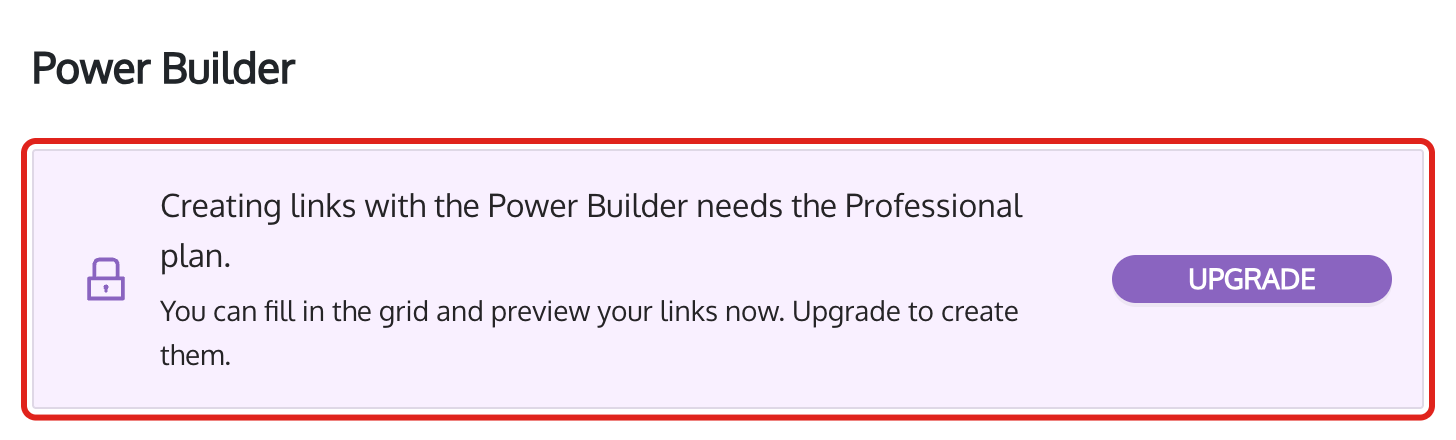
- On Starter or Plus? You can open the Power Builder, fill in the grid and preview your links. Creating them needs the Professional plan or higher. See pricing. On a legacy plan, contact [email protected] to check.
Create links with the Power Builder
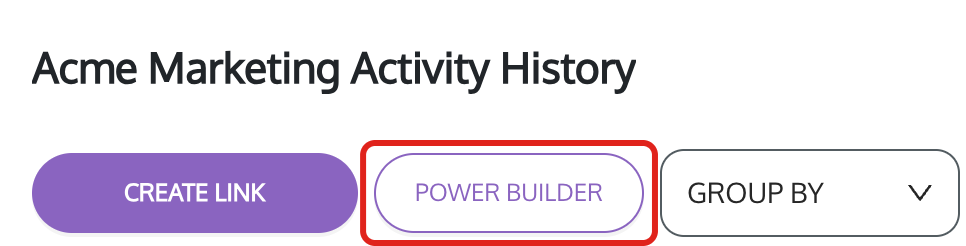
- Select Links in the left sidebar, then click POWER BUILDER, next to CREATE LINK.
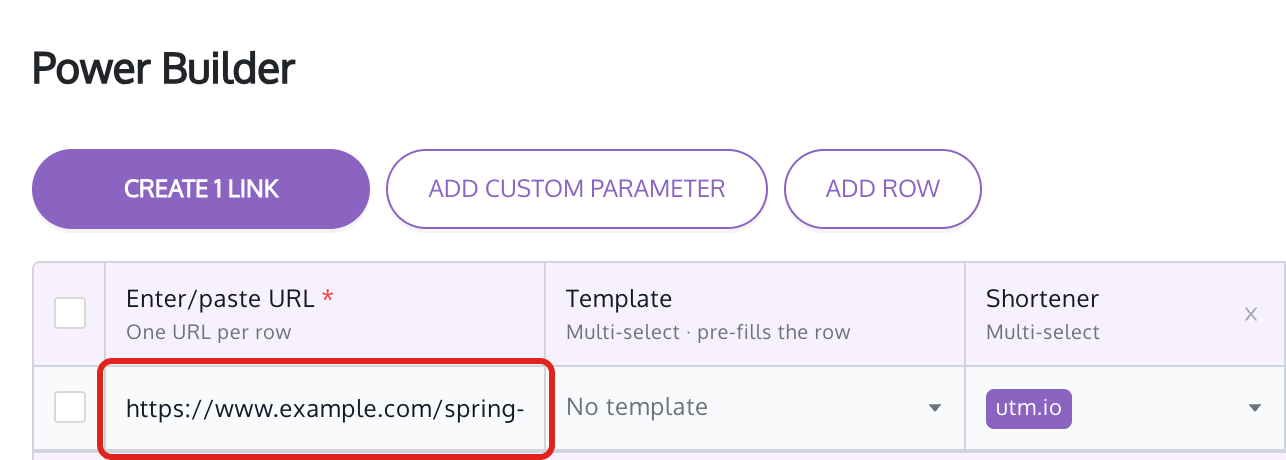
- In the first row, click the Enter/paste URL cell and enter or paste the destination URL. If you leave out
https://, it is added for you.
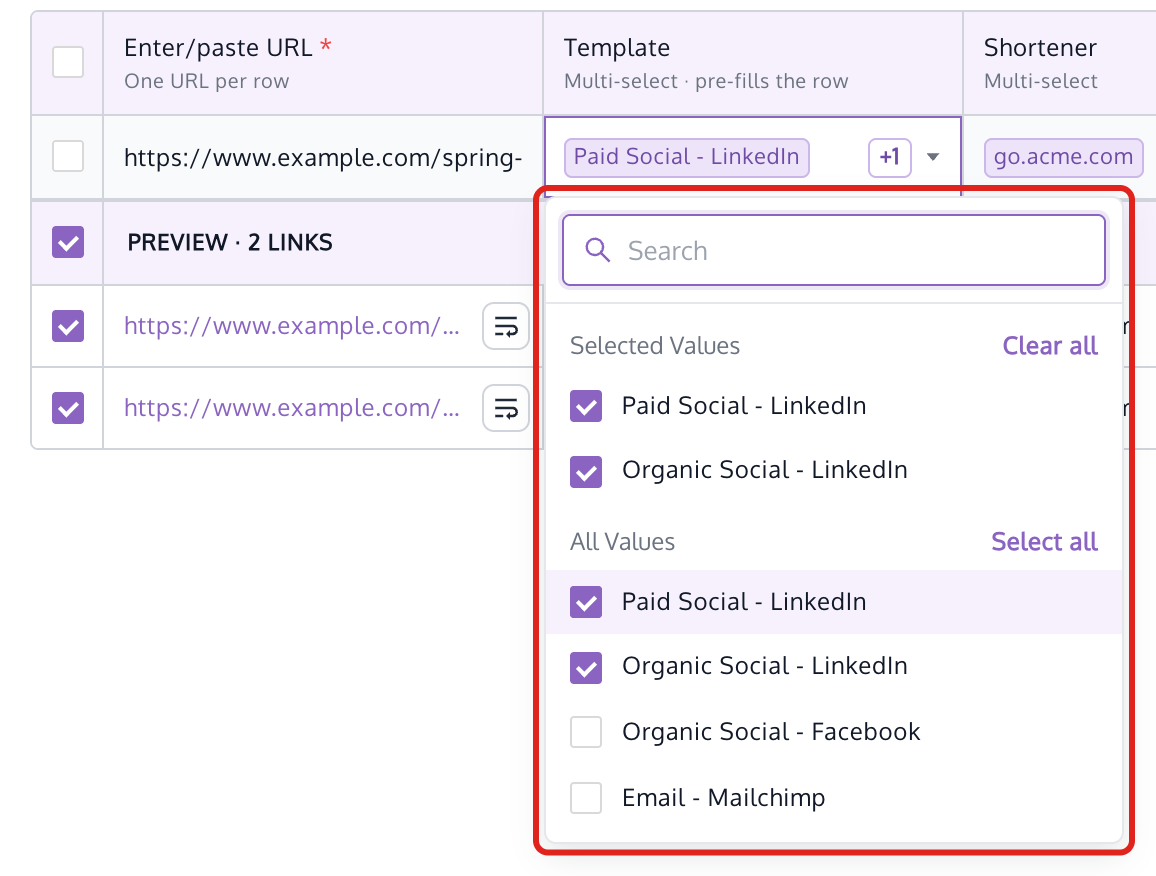
- Optional: click the Template cell and tick one or more templates. Their values fill the row's cells.
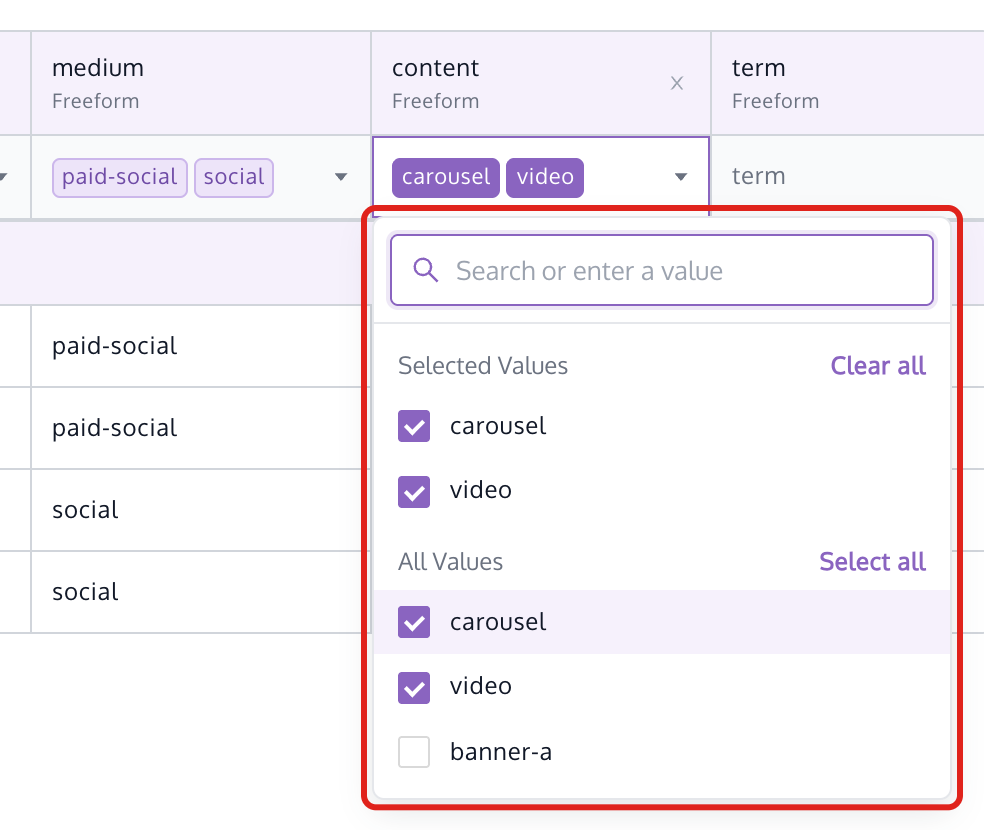
- Click a parameter cell, such as content, and tick the values you want, or type a new value and press Enter. Repeat for the other columns. See Fill in cells for shortcuts.
- To add links for another URL, click ADD ROW and fill in the new row the same way.
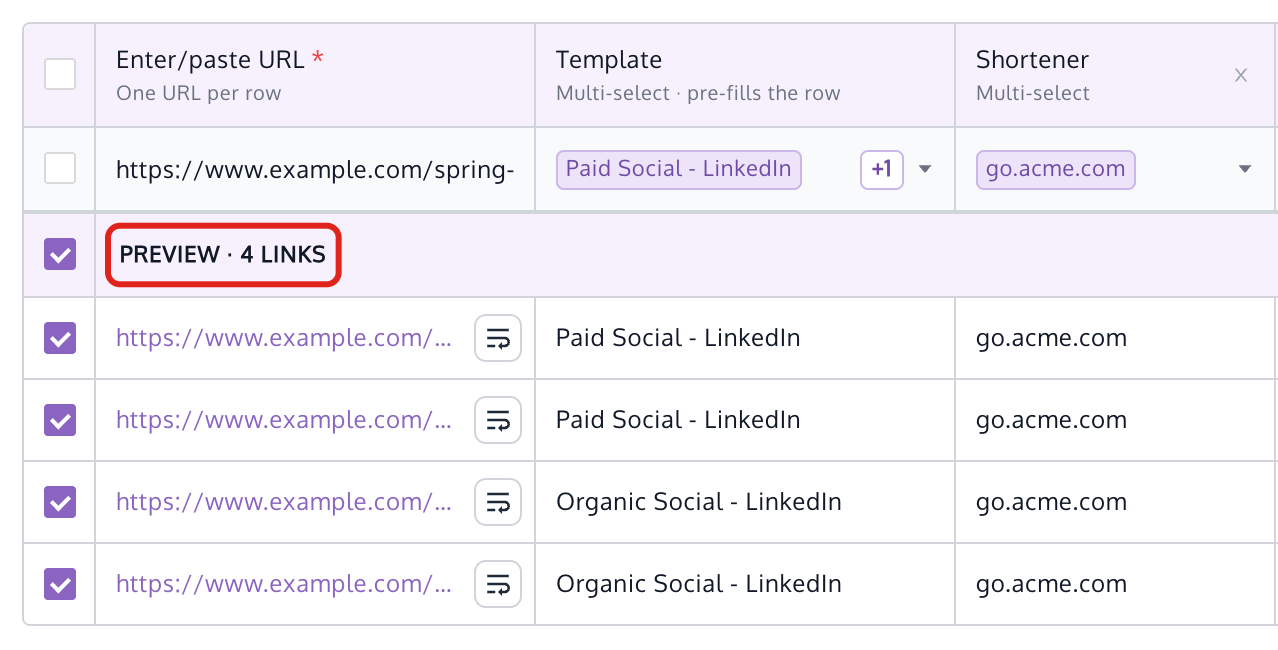
- Check the links in the preview under the grid. The heading shows how many links you will create. Untick any link you don't want.
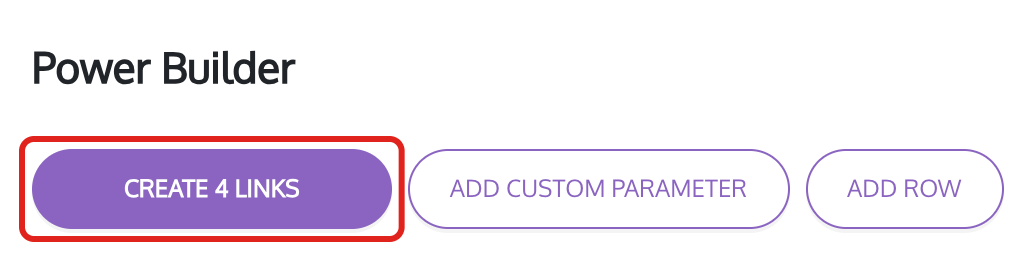
- Click CREATE LINKS. The button shows the number of links, for example CREATE 4 LINKS.
The Links page opens with the Links Generated window. See After you create links.
To remove rows, tick the box at the start of each row and click DELETE ROW (or DELETE ROWS when you selected more than one).
Fill in cells
Click any cell except URL and notes to open its list. Values already in the cell are under Selected Values. Your workspace's saved values are under All Values.
- Add saved values. Tick them, or click Select all. Type in the search box to filter the list.
- Add a new value. Type it and press Enter. It is marked (freeform). This works where your workspace rules allow typed values.
- Add a list. Paste values separated by commas or line breaks, for example
facebook, linkedin, x. Each one is added. - Remove values. Untick a value, or click Clear all. Pressing Backspace in an empty search box removes the last value you added.
- Template values. Values that come from a template are marked (template). Untick one to leave it out of this row. The template itself doesn't change.
- Number and date parameters. A number parameter accepts digits only. A date parameter opens a calendar.
The URL and notes cells are text fields: click and type.
Hide a column. QR Code Design, Shortener, content, term and notes have an × in their header. Click it to hide the column. A hidden column's values are left off the links, including values from templates. For example, with Shortener hidden, the links aren't shortened. A column your workspace rules require can't be hidden.
Add a column or a custom parameter
Use ADD CUSTOM PARAMETER to bring back a column you hid, or to add a parameter that exists only in this grid.
- Click ADD CUSTOM PARAMETER.
- To bring back hidden columns, click them under Workspace fields not in the grid. This section only shows when you have hidden a column.
- To add a new parameter, enter a Parameter Name and choose a Parameter Type:
- Freeform: any text. Optionally enter Values, separated by commas, to pick from in the cells.
- Number: digits only.
- Date: picked from a calendar, in the Date Format you enter. The format options are the ones for dynamic variables, without the brackets.
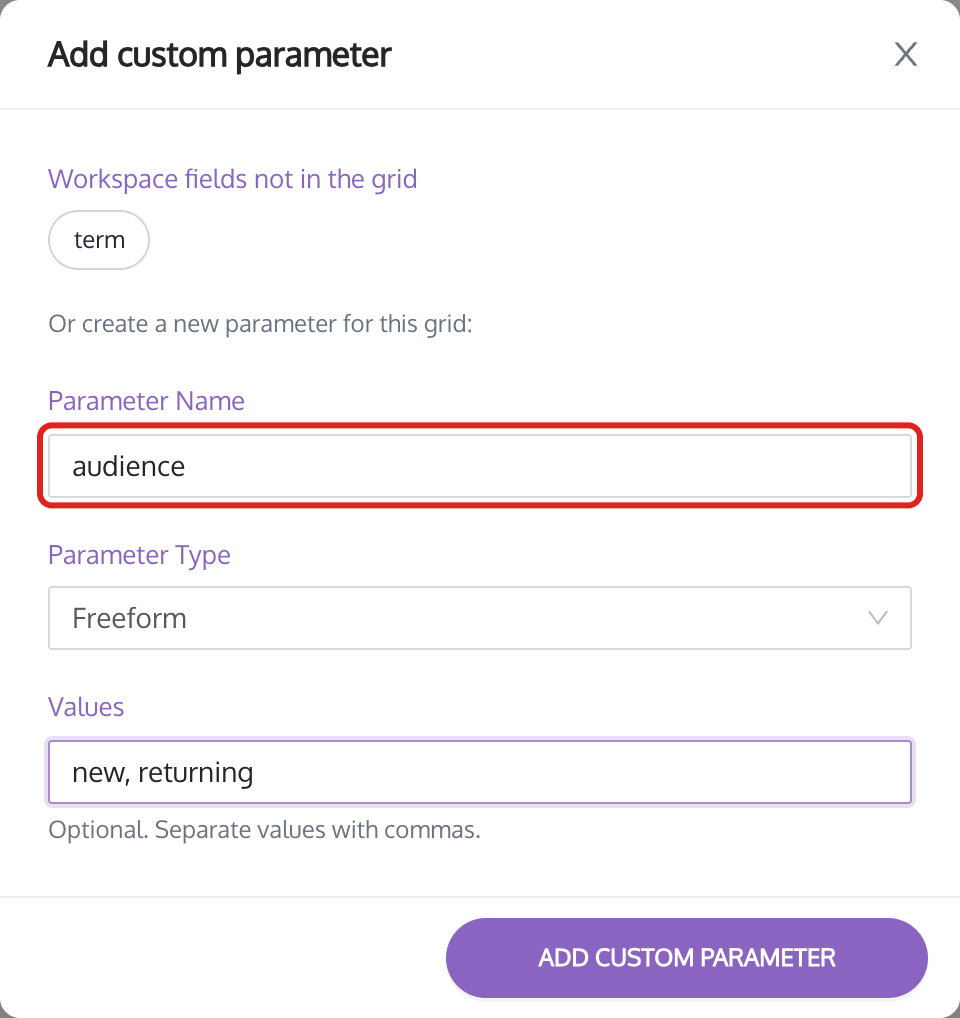
- Click ADD CUSTOM PARAMETER in the window.
A new parameter appears after the UTM columns, and its header says Custom. Its values are added to the URL of the links you create. It isn't saved to your workspace, so it isn't in the link builder or the next time you open the Power Builder. To keep a parameter for later, ask an admin to add it to the workspace. See What are custom parameters?
After you create links
UTM.io creates the links in the background. The Links Generated window shows each link as it is created, with its own Copy button.
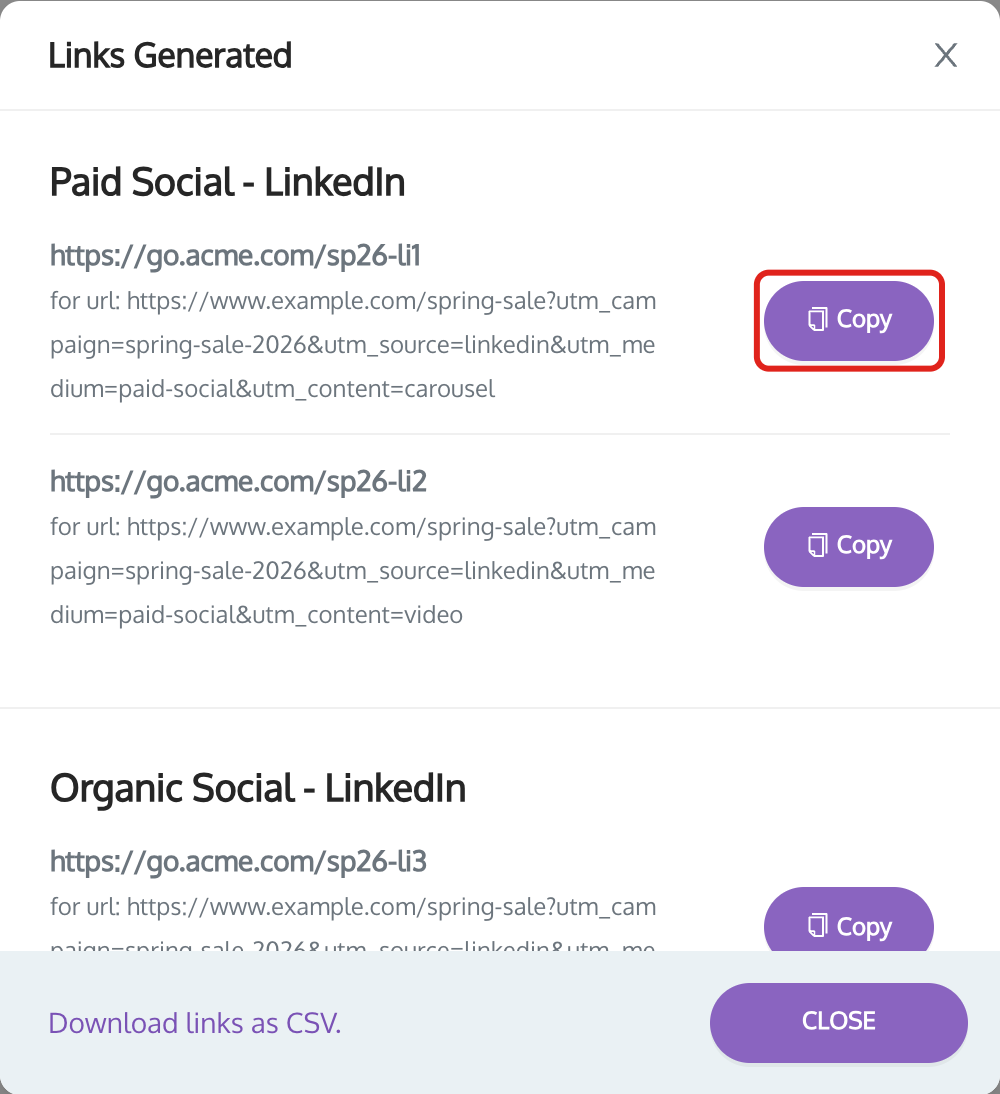
- While it runs. The window shows the progress, for example In progress (2 / 4). You can close it. Your links keep being created.
- When it is done. Click Download links as CSV. to get all of the batch's links in one file.
- If a link fails. It shows Error: and the reason. The other links are still created.
- On the Links page. The new links are listed with your other links, and you can edit, copy and export them as usual.
Find a recent batch
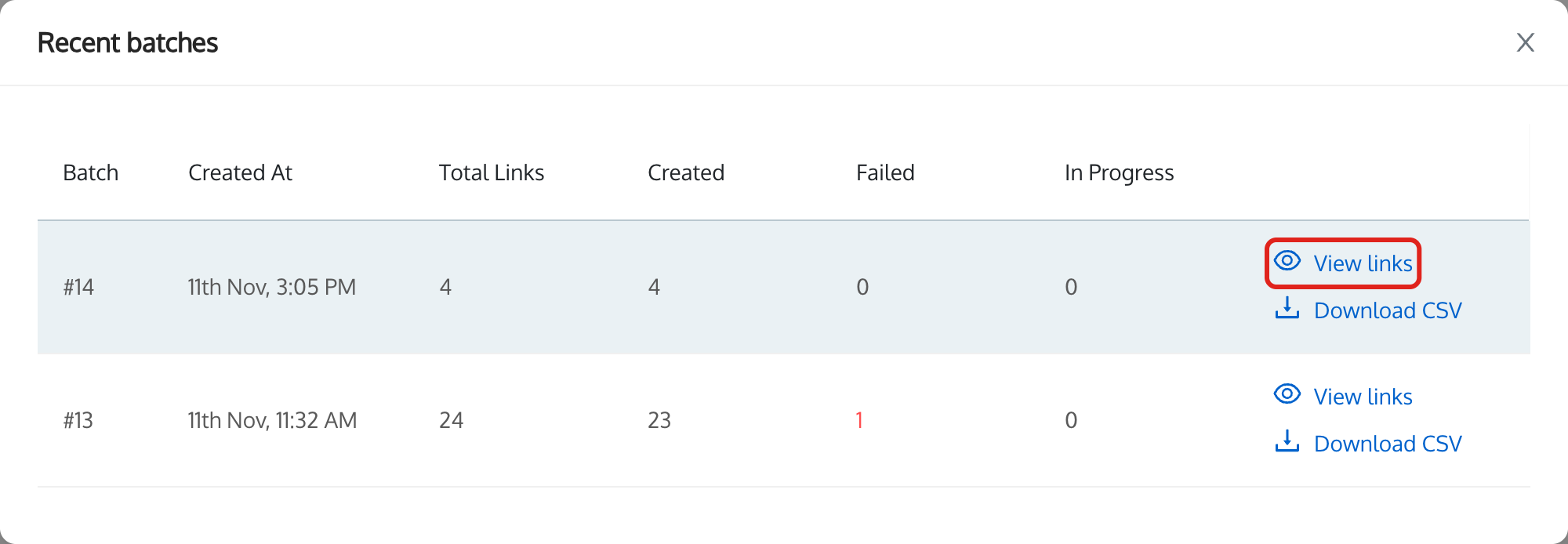
Each CREATE LINKS makes one batch. On the Power Builder page, click View recent batches to see your workspace's batches that are still running or finished in the last 24 hours. The link shows only when there is such a batch.
The Recent batches window lists each batch's number, Created At, Total Links, Created, Failed and In Progress. Click View links to open the batch, or Download CSV to export it.
Workspace rules and templates
The Power Builder applies the same workspace rules and template settings as the link builder. See What is the 'Rules' feature in UTM.io?
- Required parameters have a red * in the column header. Every row needs a value there.
- Hidden parameters don't appear as columns.
- Parameters limited to saved values don't accept typed values. Pick from the list.
- Other rules, such as unique values, value groupings and naming conventions, are checked for each link in the preview. A link that breaks a rule is shown in red and can't be created.
- Required templates. If your workspace requires templates, the Template column is required. See Requiring Templates for Link Creation.
- Locked template values. If your admin locked template values, they show a lock and can't be unticked. The grid shows Template values are locked by your workspace admin.
- Naming conventions. If the campaign value uses dynamic variables, the preview shows the campaign name each link will get. It stays grey until every value it uses is filled in.
Good to know
- 100 links at a time. When the grid adds up to more, the preview disappears and CREATE LINKS is off until you remove values. Create the rest in a second batch.
- Unsaved grid. If you leave the page with links in the grid, UTM.io asks: "You have unsaved links in the grid. Are you sure you want to discard?"
- Selecting several templates in the link builder still works on Plus and higher plans. The Power Builder adds the grid, the preview and more than one URL per batch. See How to use the bulk link builder.
- Shorteners. The Shortener column starts with your workspace's default shortener. See Set a Default Shortener for Your Workspace.
Troubleshooting
"Fill in the highlighted cells."
A row is missing its URL, or a value your workspace requires. The message names the row and the column, and the cells are highlighted in red. Fill them in, or delete the row, and click CREATE LINKS again.
"The URL is not valid."
The URL cell is red when the address isn't a full web address. Check it starts with http:// or https:// and has a domain, such as https://www.example.com/page.
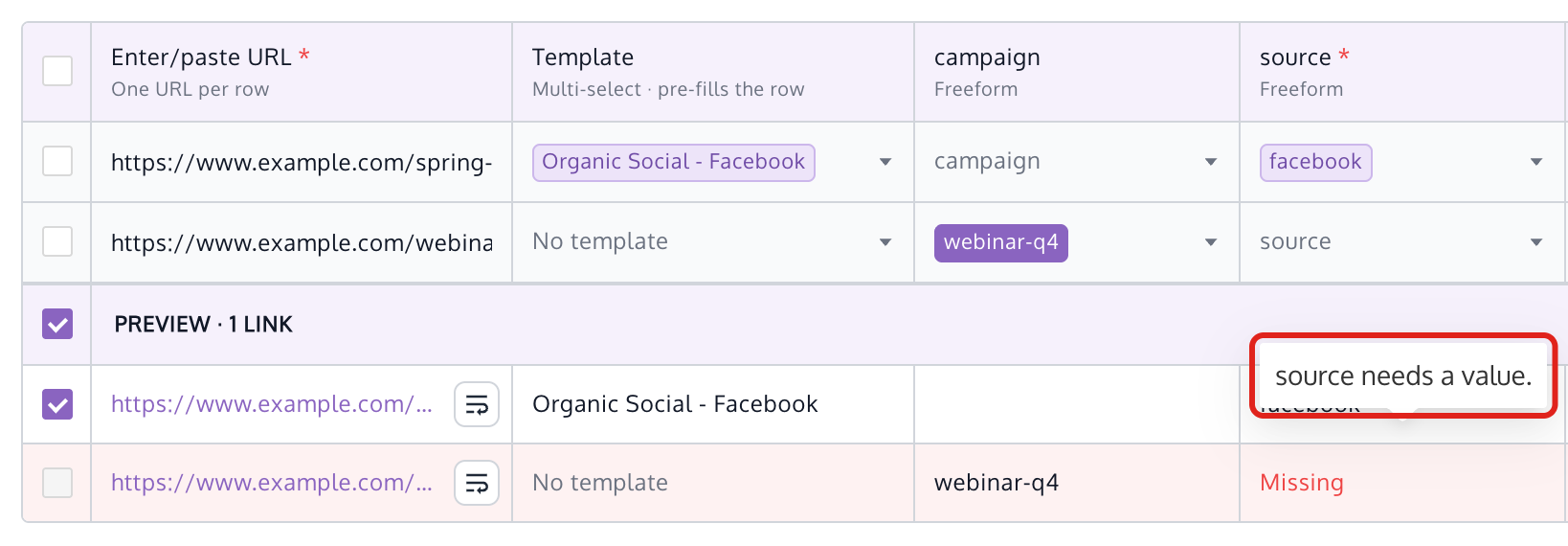
A link in the preview is red and can't be ticked
That link is missing a value or breaks a workspace rule. Hover over its red cell, or its checkbox, to see why, for example "source needs a value." Fix the cells in the grid, or leave the link out. The other links can still be created.
"That is 240 links. The grid creates up to 100 links at a time."
Remove values or rows until the total is 100 or less, then create the rest in another batch.
CREATE LINKS has a lock
Your plan doesn't include creating links with the Power Builder. Click UPGRADE in the banner, or ask your Account Owner. You can still fill in the grid and preview the links.
"The grid could not be loaded."
Click Try again. If it keeps happening, reload the page or contact us.
"A parameter with this name already exists."
The name you entered in Add custom parameter is already a column or a workspace field. Pick a different name, or bring the existing field back under Workspace fields not in the grid.
FAQ
How many links will I get?
For each row and template, multiply the number of values in each column. An empty column counts as one. The preview heading shows the total, for example PREVIEW · 4 LINKS.
Can I save the grid and finish it later?
No. The grid lives only on the page. Create the links before you leave.
Where are the links after I close the Links Generated window?
On the Links page, with your other links. For the next 24 hours you can also open the batch from View recent batches in the Power Builder.
Can I use the Power Builder in the Chrome extension?
No. It is in the web app only.
Need help?
Contact us at [email protected].